WatchDataLab

Vibe Coding for Health Data

You don't need to be a Python pro to do serious data science. Unlock the stories hidden in your wearable data.

Build powerful health apps by talking to AI — no coding required.

Our Mission

Excite

Show you that coding is now a creative tool accessible to everyone. If you have the logic and the vision (the "vibe"), the code can follow.

📚

Educate

Provide step-by-step guides to downloading and analyzing your Apple Watch and Fitbit data. Learn to extract meaningful insights from your health metrics.

🎉

Enjoy

Build a space to share ideas, explore health metrics, and meet new friends. Make data science fun and collaborative.

Build These Projects

These projects use HealthKit data from your Apple Health export. Anyone can build them—no special permissions required.

Start Here

Why Vibe Code?

Introduction No Experience Needed

New to vibe coding? Start here. Learn why your Apple Watch data is the perfect playground for building with AI, and see what you can create in just a few hours.

Curiosity is all you need. AI handles the code—you bring the questions.

Learn More →
Step 2

Export Your Data

Getting Started Apple Watch

Get your health data off your phone and into files you can work with. This step-by-step guide walks you through exporting and converting your Apple Health data.

No coding experience required. Just follow along.

Get Started →
✓ Build This Yourself

SleepScope

Sleep Quality Apple Watch Personal Insights

Visualize your sleep patterns using Apple Watch sleep stages and heart rate data. See awakenings, sleep stage distribution, and physiological responses in an intuitive dashboard. No black boxes—just transparent insights from your own data.

Key Feature: Honest about what wearables can and cannot measure. Built for self-understanding, not diagnosis.

View Project →
✓ Build This Yourself

NightWatch Sleep: 30-Day Sleep Dashboard

Sleep Analysis Apple Watch Pattern Detection

Visualize 30 nights of Apple Watch sleep stage data in a single timeline. See Deep, Core, REM, and Awake periods color-coded across nights, with heart rate deviation overlays to spot physiological patterns.

Key Feature: Automatic awakening pattern detection identifies consistent wake times across your sleep history.

View Project →
✓ Build This Yourself

AfterBurn: Heart Rate Recovery Dashboard

Workout Recovery Apple Watch Cardiovascular Fitness

Analyze what happens to your heart rate after exercise ends. Track HRR1 (heart rate recovery) trends over time, detect outlier peak heart rates, and compare recovery patterns across different workout types.

Key Feature: Detects true exercise cessation point—when exertion actually stopped, not when you tapped "End Workout."

View Project →
✓ Build This Yourself

Drift: AI Training Load Analyzer

Training Load Apple Watch Claude AI

Detect gradual shifts in your training load and recovery before you feel them. Select an activity type, and Claude analyzes 30 days of workout data alongside your resting heart rate and HRV trends to spot drift patterns.

Key Feature: Uses your own Anthropic API key—no backend server required. Analysis streams directly to your browser.

View Project →
✓ Build This Yourself — OSCAR Data

ResMed Leak Rate Detector

Sleep Apnea CPAP / ResMed OSCAR EDF

Visualize CPAP mask leak rates from raw OSCAR session recordings. See nightly summaries and—uniquely—the full intra-night leak waveform at 0.5 Hz, so you know exactly when and how long your seal broke down.

Key Feature: Built-in demo mode with realistic synthetic data, so you can explore the app—or share it—without exposing personal health records.

View Project →

Learn

Understand the science behind your health data. These guides explain the physiology and metrics that power the projects above.

HRV Series · 3 Articles

Heart Rate Variability: The Science Behind the Number

HRV Recovery Polar H10 Kubios

Three articles covering what HRV actually measures, why measurement method matters, and how to build a practical morning monitoring protocol with the Polar H10 and Kubios.

Start with the physiology. End with a real workflow.

Explore the Series →
Coming Soon

More Guides on the Way

HRV & Training Sleep Stages Cardiovascular Health

HRV and endurance training, sleep stage physiology, cardiovascular health metrics, and more. The lab is always building.

Home / About

About WatchDataLab

The Face Behind the Lab

I'm a Senior Research Area Specialist at the University of Michigan, where I work on complex Multiple Sclerosis studies—from FDA-regulated cannabis trials to symptom tracking via wearables. I also manage our Neuroimmunology data repository (Oracle/SQL).

How I Got Here

I started as a Clinical Research Coordinator with a problem: our multi-site study was dead last in enrollment. So I taught myself enough SQL to build better recruitment tracking in Access. We went from last place to second out of five sites.

That's been the pattern ever since—learn what I need to solve the problem in front of me. When our study required merging multiple local Excel files to analyze healthcare usage patterns and generate complex data exports, I taught myself Stata to handle the data merging and refinement. This streamlined our workflow and significantly improved my productivity.

I'm not a data analyst. I don't have formal CS training. But I've spent years learning just enough SQL and Stata to build tools that work.

Then AI Changed Everything

When our research required managing complex wearable data, I didn't go back to school. I discovered I could describe what I needed and let AI write the code.

Suddenly, all those years of knowing what questions to ask and what problems needed solving mattered more than syntax. It's called "Vibe Coding"—if you understand the logic and have the vision, the code can follow.

Standing on Shoulders

I work with world-class researchers: Tiffany Braley, MD, MS (Multiple Sclerosis), Cathy Goldstein, MD (Sleep Medicine), and Anna Kratz, PhD (Physical Medicine). Olivia Walch, PhD—a specialist in sleep and circadian rhythms—mentored me extensively in Apple Watch data and Python. Without her guidance, this site wouldn't exist. To explore Dr. Walch's groundbreaking work on circadian science, visit arcascope.com/blog.

My background in applied science, combined with my interests in fitness and sleep optimization, naturally led to the health-focused projects you'll find here. All content on this site represents my personal exploration and experimentation. While I'm confident these projects work well for my needs, I'm not a domain expert in these areas. Feel free to use anything you find useful, but please adapt it thoughtfully to your own situation and use at your own risk.

The Mission

WatchDataLab.com exists to prove you don't need to be a Python expert to unlock insights from your health data. If you can think through the problem clearly, AI can help you build the solution.

Excite

Show you that coding is now a creative tool accessible to everyone.

📚

Educate

Provide step-by-step guides to downloading and analyzing your Apple Watch and Fitbit data.

🎉

Enjoy

Build a space to share ideas, explore health metrics, and meet a few new friends along the way.

Home / Why Vibe Code?

Why Vibe Code?

Turn your curiosity into working code—no programming experience required

What You'll Build

In a few hours, you could have dashboards like these running with your own Apple Watch data. Real insights about your sleep, recovery, and training—built by you.

NightWatch Sleep

See 30 nights of sleep stages in a single timeline. Spot patterns in when you wake up and how your heart rate responds.

Sleep pattern visualization

SleepScope

Dive deep into individual nights. See exactly when you were in deep sleep, REM, or lying awake at 3am.

Nightly sleep analysis

AfterBurn

Track how quickly your heart recovers after workouts. A key indicator of cardiovascular fitness that most apps ignore.

Heart rate recovery tracking

Drift

Let AI analyze your training load and recovery trends. Spot drift in your fitness before you feel it.

AI-powered training analysis

What is Vibe Coding?

Vibe coding is a new way to build software: you describe what you want in plain English, and AI writes the code. You don't need to memorize syntax or understand every line—you need to know what questions to ask and what you're trying to build.

The Core Loop

1. Describe

Tell AI what you want in plain language

2. Paste

Copy the generated code into your project

3. Run

Execute and see what happens

4. Iterate

Describe what to fix or change

Want to go deeper? The full Vibe Coding Guide covers techniques for working effectively with AI assistants.

Why Health Data is Perfect for Learning

📊

You Already Have Years of Data

No need to find or fabricate datasets. Your Apple Watch has been quietly collecting thousands of data points about your sleep, heart rate, and activity.

💡

Questions Are Personal

Why did I sleep poorly Tuesday? Is my resting heart rate trending up? Personal questions are more motivating than abstract exercises.

📈

Results Are Visual

Charts and dashboards give you immediate, satisfying feedback. You'll see your code working within minutes.

🎯

Real-World Application

These aren't toy problems. You're building tools you'll actually use to understand your own health better.

Beyond the Watch

The skills you learn here transfer to any data project. Your Apple Watch is just where the journey starts.

The same techniques work for:

  • Sales figures — Build dashboards to spot trends in your business data
  • Survey responses — Analyze feedback and find patterns in customer data
  • Financial records — Track expenses, investments, or budgets over time
  • Research data — Process and visualize data from any field
  • Personal projects — Track anything you're curious about

Once you've built a sleep dashboard with AI assistance, building a sales dashboard uses the exact same process: describe what you want, iterate until it works.

You Don't Need to Be Technical

If you've been putting this off because you think you need to "learn Python first"—you don't. The old barriers to entry have collapsed.

You need curiosity about your data, not Python expertise.

AI handles the syntax. You bring the domain knowledge—the understanding of what questions matter and what the results mean. That's the part that can't be automated, and it's the part you already have.

Can you explain what a good night of sleep looks like for you? Can you describe what you'd want to see in a workout recovery chart? That's all you need.

Your Journey

1

You Are Here

Understanding the approach and what's possible

2

Export Your Data

Get your health data off your phone and into files you can work with

3

Pick a Project

Choose a dashboard and follow the tutorial to build it

4

Make It Yours

Customize or build something entirely new

Ready to Start?

The first step is getting your data. The export process takes about 15 minutes, and then you'll have everything you need to build your first dashboard.

Home / Why Vibe Code? / Export Your Data

Export Your Data

Transform your Apple Health export into spreadsheets you can actually work with

Why This Matters

Your Apple Watch has been quietly collecting valuable health data—steps, heart rate, sleep patterns, and more. But that data is locked inside your phone in a format that's nearly impossible to work with directly.

This guide walks you through extracting that data and converting it into clean CSV files that open in Excel, Google Sheets, or any analysis tool. No programming experience required—just follow along step by step.

What You'll Need

📱

iPhone with Health App

Your Apple Watch syncs all data to the Health app. The export process starts here.

💻

Computer (Mac or Windows)

You'll need a computer to run the Python script that converts the data.

🐍

Python (Free)

Don't worry—the script uses only built-in modules. No complex setup required.

Step 1: Export from Your iPhone

Apple makes this surprisingly straightforward, though the export itself takes time.

  • Open the Health app on your iPhone
  • Tap your profile picture (top right corner)
  • Scroll all the way down and tap "Export All Health Data"
  • Wait for the export to complete (this can take 5-10 minutes for years of data)
  • Save the resulting export.zip file to iCloud Drive

Heads up: For several years of data, this export can be 100+ MB. That's normal—your watch generates a lot of data.

Step 2: Transfer to Your Computer

  • Go to icloud.com on your computer and sign in
  • Navigate to iCloud Drive and download export.zip
  • Save it somewhere memorable (e.g., Documents/HealthData)
  • Unzip the file—inside you'll find export.xml (this is what we need)

Step 3: Set Up Python

If you don't have Python installed, download PyCharm Community Edition (free) from JetBrains. It includes Python and provides a friendly environment for running scripts.

Good news: The script below uses only Python's built-in modules. No additional packages to install.

Step 4: Run the Extraction Script

Create a new file called extract_health.py and paste the following code. Update the two file paths at the top to match your system.

import xml.etree.ElementTree as ET
import csv
import os

# UPDATE THESE PATHS for your computer
file_path = r'C:\Users\YourName\Documents\HealthData\export.xml'
output_folder = r'C:\Users\YourName\Documents\HealthData\extracted_csvs'

# Create output folder if it doesn't exist
if not os.path.exists(output_folder):
    os.makedirs(output_folder)

def stream_extract():
    print("Starting extraction... this takes a few minutes.")

    handles = {}
    writers = {}
    count = 0

    try:
        context = ET.iterparse(file_path, events=('start',))

        for event, elem in context:
            if elem.tag == 'Record':
                attr = elem.attrib
                record_type = attr.get('type', 'Unknown').split('.')[-1]

                if record_type not in writers:
                    f = open(os.path.join(output_folder, f"{record_type}.csv"),
                            'w', newline='', encoding='utf-8')
                    writer = csv.DictWriter(f, fieldnames=attr.keys())
                    writer.writeheader()
                    handles[record_type] = f
                    writers[record_type] = writer
                    print(f"  Created: {record_type}.csv")

                writers[record_type].writerow(attr)
                count += 1

                if count % 10000 == 0:
                    print(f"  Processed {count:,} records...")

                elem.clear()

    except FileNotFoundError:
        print(f"Error: Could not find file at '{file_path}'")
        print("Make sure the path points to export.xml, not just the folder.")
    except Exception as e:
        print(f"Error: {e}")

    finally:
        for f in handles.values():
            f.close()
        print(f"\nDone! Processed {count:,} total records.")
        print(f"CSV files saved to: {output_folder}")

if __name__ == "__main__":
    stream_extract()

Running the Script

Windows

Open Command Prompt, navigate to your script folder, and run:

python extract_health.py

Mac

Open Terminal, navigate to your script folder, and run:

python3 extract_health.py

Step 5: Explore Your Data

Check your output folder. You'll find separate CSV files for each type of health data:

StepCount.csv

Daily and hourly step totals from your watch and phone.

HeartRate.csv

Every heart rate measurement, timestamped to the second.

SleepAnalysis.csv

Sleep sessions with start times, end times, and sleep stages.

Open these files in Excel or Google Sheets. You now have years of personal health data ready for analysis, visualization, or your next vibe coding project.

Troubleshooting

"File not found" or "Permission denied" error
Make sure file_path points to the actual file (export.xml), not just the folder. Windows uses backslashes (\), Mac uses forward slashes (/).
"Python not found"
You need Python 3.7 or newer. On Mac, try python3 instead of python. Consider installing PyCharm for an easier setup.
Script runs but no output appears
Check if the output folder was created. The CSV files might be there even if progress messages didn't print.

What's Next?

With your data extracted, you're ready to build something meaningful. Explore the other projects on this site to see what's possible—from understanding your sleep patterns to building research compliance dashboards. The data is yours. The possibilities are endless.

Explore SleepScope →

Home / Build These Projects / SleepScope

SleepScope

Understand your sleep, one night at a time

✓ Build This Yourself — Uses HealthKit Data

Project Overview

Understanding your sleep shouldn't require a sleep lab or a medical degree. But it does require being upfront about what wearable sensors measure well, what they estimate, and what they simply can't see. This project is built on transparency: you deserve to know exactly what your data can tell you — and where the limits are.

SleepScope visualizes Apple Watch sleep stages and heart rate patterns to help you see what's happening while you sleep. No black boxes. No guesswork. Just honest insights from your own data.

SleepScope Dashboard

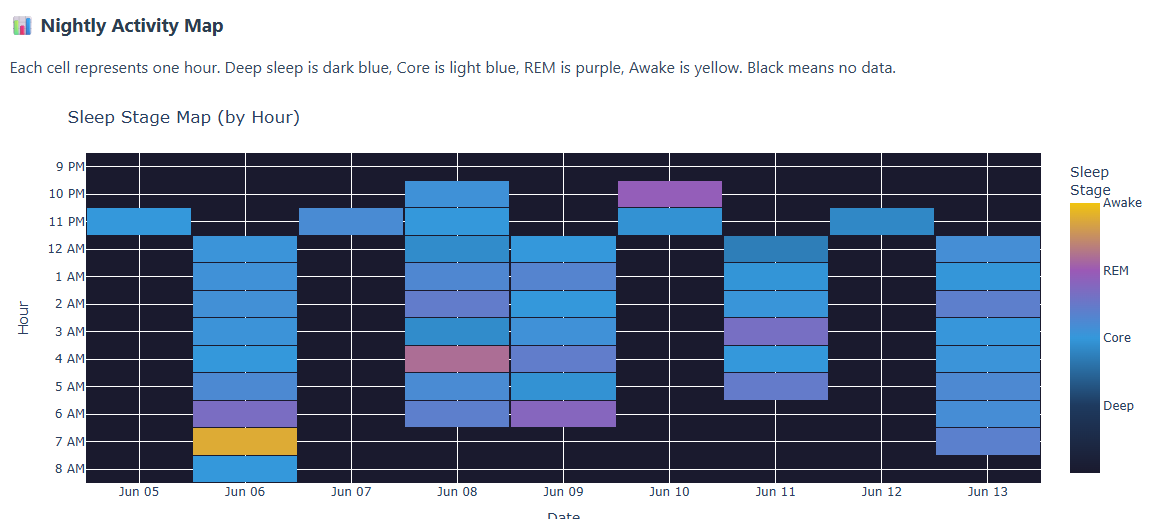
SleepScope dashboard showing sleep stage heatmap, summary metrics, and heart rate overlay

7 days of sleep data: Summary metrics show awakenings, longest sleep stretch, Deep/REM percentages, and average heart rate for the selected period.

What Your Data Shows

😴 Sleep Stages

Apple Watch detects Deep, Core (light), REM, and Awake periods using movement and heart rate patterns. See how your night breaks down across these stages. Provided by HealthKit.

❤️ Heart Rate Response

Your heart rate reflects your autonomic nervous system. It often indicates micro-arousals, stress responses, dream-related activation, and environmental disturbances. Very accurate.

📊 Sleep Fragmentation

How choppy was your night? Frequent awakenings and short sleep stretches indicate fragmented sleep. Long uninterrupted periods suggest consolidated rest. Detected by Apple Watch.

What This Data Cannot Measure

Even the best consumer wearables have blind spots. This tool cannot:

  • Provide clinical-grade sleep staging — Apple's stages are estimates, not EEG-verified
  • Detect true cortical arousals — can only infer from Apple's awake detection
  • Diagnose sleep disorders (apnea, RLS, insomnia, parasomnias)

Built for self-understanding, not diagnosis. If you notice concerning patterns, discuss them with a healthcare provider.

Key Features

📅 7-Day Analysis

View up to a week of sleep data at once. See patterns emerge across multiple nights rather than isolated snapshots.

🌙 Sleep Window Focus

Set your typical bedtime and wake time. Charts automatically filter to show only your sleep hours ± 1 hour buffer.

🎨 Sleep Stage Heatmap

Visualize sleep stages across days and hours. Deep sleep in dark blue, Core in light blue, REM in purple, Awake in yellow.

Dashboard Metrics

These summary statistics are calculated for your selected 7-day period, giving you a week-level view of your sleep quality.

🔔 Awakenings

Total count of distinct awakening episodes detected by Apple Watch across the selected period.

⏱️ Longest Sleep

Your longest uninterrupted sleep stretch across the period—a key indicator of sleep consolidation.

📊 Deep & REM %

Average percentage of your sleep time spent in restorative Deep sleep and dream-state REM sleep.

Try It Yourself

Export your Apple Watch data using the guide on this site, then run SleepScope locally. Your data stays on your device — nothing is uploaded or stored externally.

Home / Research Portfolio / Compliance Dashboard

Apple Watch Study Compliance Dashboard

Real-time data quality assurance for clinical research

⚠️ Requires SensorKit Access — Research/Enterprise Only

This project uses raw sensor data from Apple's SensorKit framework, which requires special entitlement from Apple. Learn about SensorKit vs HealthKit →

Project Overview

To ensure the integrity of wearable research datasets, we developed a proprietary Quality Assurance (QA) pipeline. This system processes raw sensor data from Apple Watch devices to visualize participant adherence in near real-time.

Unlike standard commercial dashboards which hide raw data behind "black box" summaries, this tool visualizes the raw sensor density. This allows study teams to differentiate between device failure, non-compliance (not wearing), and low-activity periods (sedentary behavior).

The "Night Wear" Compliance Algorithm

We utilize a strict, dual-verification algorithm to calculate the primary "Night Wear Score" displayed on the dashboard gauge.

✓ Algorithmic Confirmation

A valid watchSleep.csv file was generated by the device algorithm.

✓ Raw Data Backup

If algorithm failed, system scans raw heartrate.csv. If data exists for >4 cumulative hours between midnight and 6 AM, night is credited as "Worn."

The "Ghost Hour" Filter

To eliminate false positives from device noise or passive background recording, we use a Density-Based Verification System:

  • Time is processed in 1-hour blocks
  • For an hour to be "Valid Wear Time," sensor must record ≥15 distinct physiological samples
  • Hours with <15 samples are classified as "Artifact/Non-Wear" and discarded

Temporal Heatmap Visualization

The dashboard features a high-resolution temporal heatmap (24-hour Y-axis vs. Study Date X-axis) showing participant behavior and device sampling characteristics.

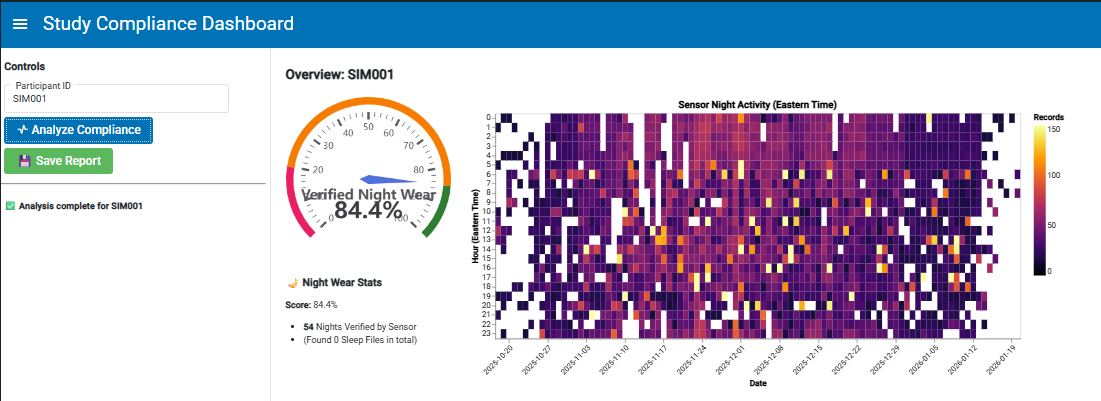
🟢 Good Compliance Example

Heatmap showing good compliance with consistent activity density during sleeping hours

The heatmap confirms consistent activity density during typical sleeping hours (roughly 23:00 to 07:00) throughout the study period, showing very few gaps in data collection.

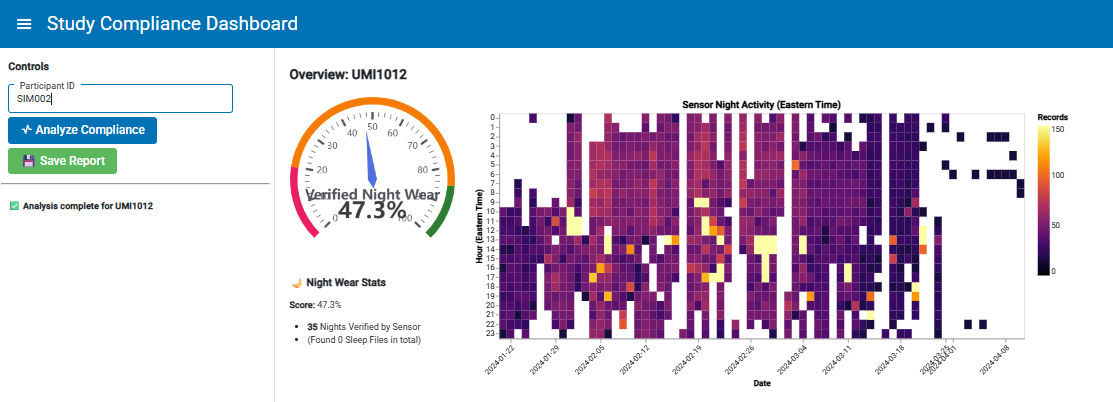
🔴 Poor Compliance Example

Heatmap showing poor compliance with significant gaps in data collection

The heatmap reveals significant gaps where the sensor was either not worn or failed to record data, particularly during the first and last weeks of the study period.

Color Intensity Interpretation

🟪 Dark Purple: Resting/Sedentary

Behavior: User is sedentary, watching TV, or sleeping.

Device Logic: Apple Watch enters "Background Mode" to conserve battery. Samples heart rate infrequently (once every 5-10 minutes).

🟨 Bright Yellow: Active Movement

Behavior: User is walking, exercising, or performing daily activities.

Device Logic: Accelerometer triggers "Active Mode." Optical sensor ramps up sampling frequency to hundreds of times per hour.

⬜ White Space: Non-Wear/Charging

Definition: Any hour containing fewer than 15 raw data points.

Clinical Utility: Detects charging sessions. Even 45-minute charges create visible gaps, allowing verification of daily charging compliance.

Key Capabilities

  • Differentiates Sedentary vs. Non-Compliant: Distinguish patient sitting still (Purple) from not wearing watch (White)
  • Verifies Data Quality: Ensures high-frequency active data (Yellow) is captured during gait bouts
  • Audit Ready: Provides instant, transparent view of participant's entire history for oversight audits

Clinical Application

This dashboard serves as the primary validation tool for wearable research data pipelines. By visualizing raw data density rather than summary averages, we eliminate false positives (e.g., claiming a patient slept when the watch was simply left on a nightstand) and provide actionable insights for improving participant adherence.

Home / Build These Projects / NightWatch Sleep

NightWatch Sleep: 30-Day Sleep Dashboard

See the big picture of your sleep patterns

✓ Build This Yourself — Uses HealthKit Data

Project Overview

A single night of sleep data tells you very little. But 30 nights? That's where patterns emerge. NightWatch Sleep is a Dash + Plotly dashboard that visualizes an entire month of Apple Watch sleep stage data, making it easy to spot trends, identify consistent awakening times, and understand your sleep architecture at a glance.

NightWatch Sleep Dashboard

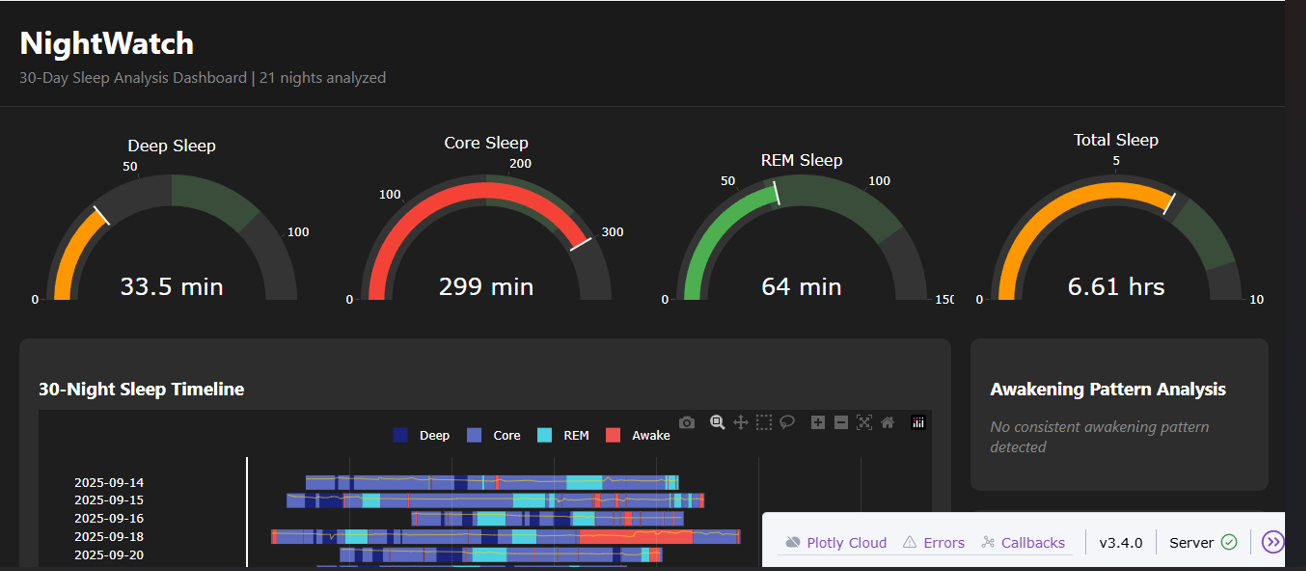
NightWatch Sleep 30-Day Sleep Dashboard showing sleep stage gauges, timeline visualization, and awakening pattern analysis

30 nights of sleep data at a glance: Deep, Core, REM, and Awake stages color-coded across time. Gauge charts show 30-day averages with target ranges.

Built on the same CSV data you extract using our guide, NightWatch Sleep transforms raw sleep records into actionable insights—all running locally on your machine.

What You'll See

🌙 30-Night Timeline

A color-coded heatmap showing every sleep stage across 30 nights. Deep sleep in dark blue, Core in medium blue, REM in cyan, Awake in red. All nights aligned to a common time axis (9 PM - 9 AM) for easy comparison.

📊 Summary Gauges

Four gauge charts showing your 30-day averages for Deep, Core, REM, and Total sleep time. Color-coded to show whether you're hitting recommended targets.

⏰ Awakening Patterns

Automatic detection of consistent awakening times. If you tend to wake up at 3 AM on multiple nights, NightWatch Sleep finds it and tells you exactly how often it happens.

Sleep Stage Colors

Deep Sleep

The most restorative stage. Your body repairs tissues, builds bone and muscle, and strengthens the immune system.

Core Sleep

Light sleep stages (N1/N2 combined). Makes up the majority of your night. Important for memory consolidation.

REM Sleep

Dream sleep. Characterized by rapid eye movements and increased brain activity. Critical for emotional regulation.

Awake

Brief awakenings during the night. Some are normal, but extended awake periods may indicate sleep fragmentation.

Heart Rate Deviation Overlay

NightWatch Sleep calculates your baseline heart rate (10th percentile of all sleep HR) and overlays the deviation on each night's timeline. This helps you spot:

  • REM periods: Heart rate typically increases and becomes more variable during REM sleep
  • Stress responses: Elevated HR during awakenings may indicate anxiety or environmental disturbances
  • Deep sleep confirmation: Lowest HR typically aligns with deep sleep stages

Understanding the Data

On Accuracy: Apple Watch sleep staging uses accelerometer and heart rate data to infer sleep stages—it cannot measure brain waves like a clinical polysomnography. Studies show consumer wearables achieve roughly 60-80% agreement with clinical staging. The data is excellent for tracking trends over time but should not be interpreted as precise minute-by-minute measurements.

Technical Details

NightWatch Sleep is built with Python using Dash and Plotly for interactive visualization. It reads directly from the CSV files you extract using our guide:

  • HKCategoryTypeIdentifierSleepAnalysis.csv — Sleep stage records from Apple Watch
  • HKQuantityTypeIdentifierHeartRate.csv — Heart rate samples for overlay

The dashboard runs locally at http://127.0.0.1:8050. Your data never leaves your machine.

Try It Yourself

Export your Apple Watch data using our guide, then run NightWatch Sleep to see your own 30-day sleep patterns. The code is designed for vibe coding—clear, readable, and easy to modify.

Home / Build These Projects / AfterBurn

AfterBurn: Heart Rate Recovery Dashboard

What happens after exercise matters more than what happens during

✓ Build This Yourself — Uses HealthKit Data

Project Overview

Most fitness apps treat exercise as an on/off switch—the moment you tap "End Workout," you're done. But that's not how your body works. The real story of cardiovascular fitness unfolds in the minutes after you stop. How quickly does your heart rate drop? How does that recovery speed change over time? Apple Watch collects this data but barely surfaces it. This dashboard makes it visible.

AfterBurn Dashboard

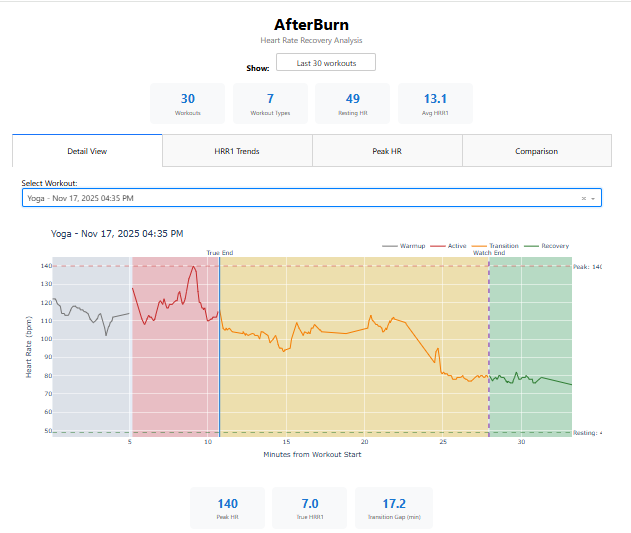
AfterBurn dashboard showing heart rate recovery analysis with HRR1 trends, workout comparison, and recovery curves

Heart rate recovery analysis: HRR1 trends over time, color-coded by workout type. Track whether your cardiovascular fitness is improving, declining, or staying stable.

Important: Don't End Your Workout Too Early

Apple Watch samples heart rate continuously during an active workout, but only for about 3 minutes after you tap "End Workout." After that, it drops to background sampling every 5-15 minutes—not nearly enough data to plot a meaningful recovery curve.

The fix is simple: After your exercise actually ends, keep the workout running on your watch for 10-12 minutes before tapping "End." The dashboard doesn't use Apple's end time anyway—it detects where you actually stopped by analyzing the heart rate data itself. What matters is that continuous sampling was happening during the full recovery window.

This project is educational—it does not diagnose cardiac conditions. However, understanding your recovery patterns can reveal meaningful trends worth discussing with a healthcare provider, particularly if you notice sudden changes in recovery speed, elevated peak heart rates, or outliers that don't fit your normal pattern. Wearable devices have increasingly shown value in flagging cardiovascular events that users were unaware of, and visualizing your own data clearly is a powerful first step toward that kind of awareness.

Exercise Doesn't End When the Class Does

After an intense class ends, you're still moving: rolling up your mat, putting weights away, walking to your car, cooling down in the studio. Your heart rate doesn't care whether you're doing burpees or carrying a yoga block. If your muscles are warm, your core temperature is elevated, and you're still moving, your cardiovascular system is still working.

Recovery isn't a moment—it's a curve. There's a spectrum between peak exertion and true rest: active cool-down (still moving, intensity declining), passive cool-down (seated but HR still elevated), and gradual return to baseline. The point that actually matters is the inflection point—where your heart rate stops being driven by exertion and begins its sustained drop toward resting. That's what this dashboard detects automatically from your HR data, rather than relying on when you happened to tap a button on your watch.

What is HRR1?

Heart Rate Recovery (HRR1) measures how many beats per minute your heart rate drops in the first minute after exercise stops. It's one of the most validated biomarkers of cardiovascular fitness and autonomic nervous system function.

Good Recovery (>20 bpm)

Your parasympathetic nervous system kicks in quickly, slowing your heart efficiently. Associated with better cardiovascular fitness.

Moderate (12-20 bpm)

Average recovery speed. Room for improvement through consistent aerobic training.

Slow Recovery (<12 bpm)

May indicate reduced cardiovascular fitness or autonomic dysfunction. Worth discussing with a healthcare provider if persistent.

Why Apple's App Doesn't Show You This

Apple Watch calculates HRR1 internally and displays it briefly after a workout ends. But it doesn't trend it over time, doesn't compare it across workout types, and doesn't show you the full recovery curve. The data is there—it just isn't surfaced in a way that reveals patterns. That's what this dashboard does.

The True Cessation Problem

Here's something Apple's fitness metrics don't account for: when you tap "End Workout" isn't when you actually stopped exercising.

Maybe you cool down for a few minutes. Maybe you're still walking to get water. Maybe you forgot to end the workout until you got home. Apple calculates HRR1 from the moment you tap the button—but that's often 5-15 minutes after your heart rate actually started recovering.

AfterBurn solves this with a True Exercise Cessation Detection algorithm that analyzes the inflection point in your heart rate curve to find when exertion actually stopped, regardless of when you ended the workout on your watch.

Dashboard Views

Detail View

Examine individual workout recovery curves. See heart rate from workout start through 30+ minutes of recovery, with phase identification (warmup, active, transition, recovery) and true cessation point highlighted.

HRR1 Trends

Track your recovery speed over time. See if your cardiovascular fitness is improving, declining, or staying stable. Color-coded by workout type with trend line analysis.

Peak HR Outliers

Identify workouts where your heart rate was unusually high. Uses statistical thresholds (mean + 1.5 standard deviations per workout type) to flag potential concerns worth discussing with a doctor.

Comparison View

Compare average recovery curves across different workout types. See which activities give you the best recovery patterns and how different exercise modalities affect your cardiovascular response.

What This Data Cannot Do

AfterBurn is built for self-understanding, not diagnosis. While HRR1 is a validated biomarker in clinical research, consumer wearable data has limitations:

  • Optical heart rate sensors can miss beats or add artifacts during high movement
  • Individual variation is high—what's normal for you may differ from population averages
  • A single slow recovery doesn't indicate a problem; look for persistent patterns
  • This tool cannot diagnose cardiac conditions or replace medical evaluation

Technical Details

AfterBurn is built with Python using Dash and Plotly. It reads directly from the CSV files you extract using our guide:

  • Workout.csv — Workout records with type, start time, end time, and duration
  • HKQuantityTypeIdentifierHeartRate.csv — Heart rate samples throughout workouts and recovery
  • HKQuantityTypeIdentifierHeartRateRecoveryOneMinute.csv — Apple's HRR1 values (for comparison)

The dashboard runs locally at http://127.0.0.1:8052. Your data never leaves your machine.

Try It Yourself

Export your Apple Watch data using our guide, then run AfterBurn to discover what your post-workout heart rate patterns reveal about your cardiovascular fitness.

Home / Build These Projects / Drift

Drift: AI Training Load Analyzer

Detect gradual shifts in load and recovery before you feel them

✓ Build This Yourself — Uses HealthKit Data

Project Overview

Training adaptations happen gradually. So does overtraining. The challenge is that gradual shifts—in load, in recovery, in the relationship between the two—are hard to notice when you're living them day to day. By the time you feel overtrained, you've usually been drifting that direction for weeks.

Drift Dashboard

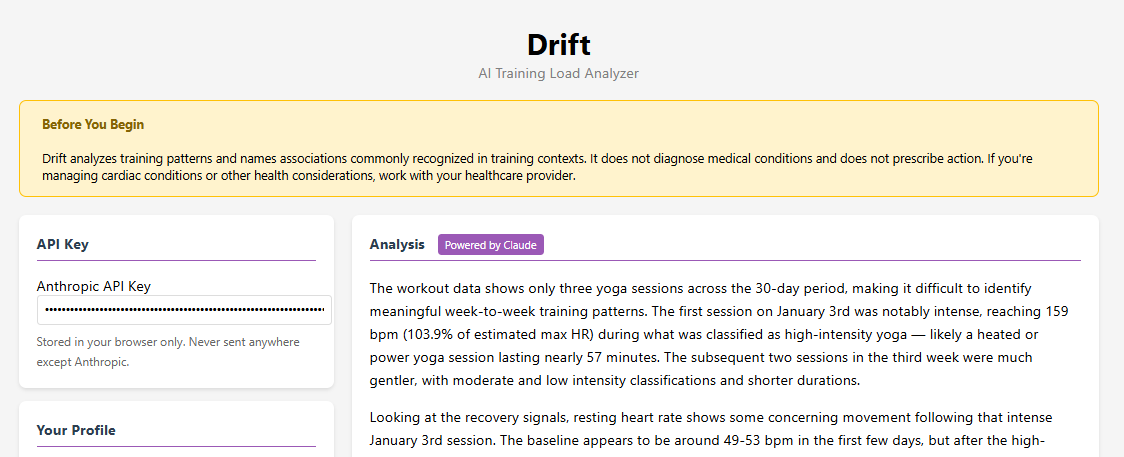
Drift AI Training Load Analyzer showing workout analysis with intensity classification and Claude AI-powered recovery drift detection

AI-powered training analysis: Select any date range from your available data, see all your workouts visualized by intensity, and get Claude's analysis of your total training load patterns.

Drift uses Claude AI to analyze your TOTAL training load—all activities combined—across any date range you select. Recovery signals (resting heart rate) don't care which activity tired you out; they reflect your body's total state. Drift shows your available data range, lets you pick custom dates, and examines whether your load and recovery are tracking together or drifting apart. The analysis streams directly to your browser using your own Anthropic API key. No backend server required.

✨ Recently Enhanced (Feb 2026)

Drift has been significantly improved with enhanced security and more sophisticated analysis capabilities:

  • Better Analysis Quality: Now requires 5+ workout sessions (up from 2) for reliable trend detection. Trend arrows now show magnitude of change (e.g., "RHR ↑ +3.8 bpm").
  • Multi-Pattern Clustering: Detects both back-to-back high-intensity sessions (24h) AND weekly overload patterns (3+ hard sessions in 7 days).
  • Data Quality Warnings: Automatically assesses data completeness and warns about gaps in recovery signals that could affect analysis reliability.
  • Enhanced Security: Input validation, physiological bounds checking (HR must be 30-250 bpm), and improved error handling protect against invalid data.
  • Smarter AI Prompts: Claude now receives physiological context (normal RHR/HRV ranges, meaningful thresholds) for more accurate drift detection.

These improvements make Drift more reliable, secure, and analytically robust while maintaining the same simple workflow.

What You'll See

📅 Custom Date Selection

Drift shows your available data range and lets you pick any start/end dates. Quick buttons for 7, 14, or 30 days. Perfect for periodic data exports—analyze exactly the timeframe you want.

📊 Training Timeline

Interactive scatter plot showing ALL your workouts colored by intensity: red (High >85% max HR), orange (Moderate 70-85%), green (Low <70%). See your training density and intensity at a glance.

📈 Recovery Trends

Resting HR chart with trend lines and workout markers. See how your recovery signals respond to training load. Rising trends after high-intensity clusters may indicate accumulated fatigue.

Important: This Is Observational, Not Prescriptive

Drift observes patterns and names associations that are commonly recognized in training contexts. It does not diagnose, and it does not prescribe action. If it notices that your resting HR has been creeping up while your training load increased, it will say so—but it won't tell you to take a rest day. That decision is yours, ideally made in consultation with a coach or healthcare provider if you have concerns.

What Drift Looks For

Total Training Load

ALL activities in your timeframe—Yoga, Pilates, Cycling, everything. Your body doesn't recover from activities in isolation; Drift analyzes total load.

Intensity Distribution

Summary stats show High/Moderate/Low session counts. A heated yoga class (High) and a gentle yoga class (Low) impose different recovery demands—Drift classifies by actual HR effort.

High-Intensity Clustering

Automatic warnings for two clustering patterns: back-to-back sessions within 24 hours, and weekly overload (3+ high-intensity sessions in 7 days). Both patterns can lead to accumulated fatigue—Drift flags them automatically.

Recovery Trend Direction

Trend arrows (↑↓→) show whether resting HR is rising, falling, or stable, with magnitude displayed (e.g., "RHR ↑ +4.2"). Clinically meaningful thresholds (±3 bpm for RHR) ensure you see real trends, not just noise. Rising RHR during or after high load is a classic drift pattern—the signal Drift is named for.

How It Works

1. Select Date Range

Drift shows your available data range. Pick custom start/end dates or use quick buttons (7, 14, 30 days). Data loads instantly as you select.

2. Explore Your Data

Training Timeline shows all workouts by intensity. Recovery Trends shows resting HR with trend lines. High-intensity clustering warnings appear automatically.

3. Get AI Analysis

Enter your profile and API key, then tap "Analyze Training Load." Claude examines ALL activities in your timeframe and delivers plain-prose insights.

Common Drift Patterns

Claude looks for patterns that are commonly associated with known training dynamics:

  • Rising resting HR + stable or increasing load — commonly associated with accumulated fatigue
  • Dropping HRV after high-intensity weeks — commonly associated with the body needing more recovery time
  • Stable signals + stable load — no drift detected, things are tracking well
  • Improved HRV + moderate load — commonly associated with positive adaptation

Your API Key, Your Data

Drift calls the Anthropic API directly from your browser. You provide your own API key in the dashboard UI, which is stored locally in your browser and never sent anywhere except to Anthropic. There's no backend server, no database, no account to create. Your health data goes from your browser to Claude and back—nowhere else.

Security Note: Your API key is validated (must start with "sk-ant-") and stored in browser localStorage. The app displays a warning not to use it on shared computers. For production deployments, you can disable debug mode by setting the environment variable DRIFT_ENV=production.

At current API pricing, each Drift analysis costs approximately $0.002–$0.005. Running it once a week would cost less than $0.10 per month.

What This Project Does Not Do

  • Diagnose — Drift does not interpret cardiac or cardiovascular health status
  • Prescribe — It will never say "you should" or "consider taking a rest day"
  • Store responses — Each analysis is ephemeral; nothing is saved or cached
  • Replace professional guidance — If you're managing health conditions, work with your healthcare provider

Technical Details

Drift reads from the same CSV files you extract using our guide:

  • Workout.csv — Workout records with type, duration, and timestamps
  • HKQuantityTypeIdentifierHeartRate.csv — Heart rate samples during workouts (for intensity classification)
  • HKQuantityTypeIdentifierRestingHeartRate.csv — Nightly resting heart rate
  • HKQuantityTypeIdentifierHeartRateVariabilitySDNN.csv — HRV measurements (optional—Drift works without it)

You'll also need an Anthropic API key (free tier is sufficient for typical usage). Each analysis costs approximately $0.002–$0.005.

Try It Yourself

Export your Apple Watch data using our guide, get an Anthropic API key, and build Drift to see what your training load patterns reveal. The analysis takes seconds, and the insights might save you weeks of accumulated fatigue.

Home / Build These Projects / NightWatchOSA

NightWatchOSA: CPAP Wear Inference

Infer CPAP usage from Apple Watch breathing disturbance patterns

💾 Archived Project

NightWatchOSA has been superseded by the ResMed Leak Rate Detector, which reads confirmed OSCAR EDF data directly rather than inferring CPAP use from proxy signals. This page is kept for reference.

✓ Build This Yourself — Uses HealthKit Data

Project Overview

NightWatchOSA is a local Streamlit app that reads Apple HealthKit CSV exports and tries to answer a practical question: "Based on my Apple Watch breathing-disturbance pattern, does this night look like I wore CPAP or not?" It then compares other Apple Watch-derived metrics between nights that look like CPAP vs No-CPAP, while labeling ambiguous nights as Unknown.

NightWatchOSA Dashboard

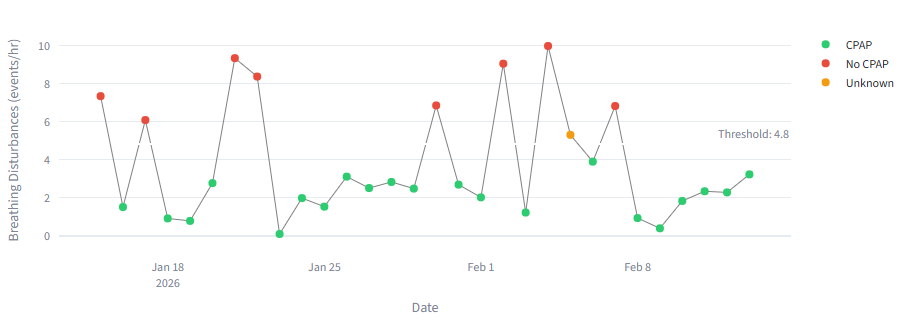
NightWatchOSA breathing disturbance trend showing CPAP, No CPAP, and Unknown night classifications with auto-detected threshold

Breathing disturbance trend with k-means clustering: green dots indicate inferred CPAP nights, red dots indicate likely No-CPAP nights, and orange dots mark uncertain nights near the threshold.

NightWatchOSA uses k-means clustering on nightly breathing disturbance rates to automatically find a threshold separating two groups. An "Unknown band" prevents overconfident labeling of borderline nights. The app then compares sleep metrics (HRV, sleep stages, heart rate, SpO2) between inferred groups using Mann-Whitney U tests, and optionally generates AI-powered interpretation using your Anthropic API key.

Important: This Is Educational, Not Clinical

NightWatchOSA does not diagnose sleep apnea, does not estimate clinical AHI, and should not be used to change CPAP pressure or other clinical settings. CPAP wear is inferred from a proxy signal, not measured. It's an educational tool meant to help you notice patterns and decide when something might warrant a deeper look or a conversation with your clinician.

What You'll See

Breathing Disturbance Trend

Interactive time-series chart of nightly breathing disturbances color-coded by inferred classification: CPAP (green), No-CPAP (red), Unknown (orange). The auto-detected threshold is shown as a dashed line.

CPAP vs No-CPAP Comparison

Side-by-side statistical comparison of HRV, deep sleep %, REM sleep %, overnight heart rate, SpO2, and total sleep hours between inferred CPAP and No-CPAP nights, with p-values from Mann-Whitney U tests.

Weekly Trends & AI Insights

Weekly rolling averages of key metrics, plus optional AI-powered interpretation of your aggregated statistics using Claude. Generates a downloadable PDF report with disclaimers and interpretation tips.

The Core Idea: Inference, Not Measurement

NightWatchOSA does not have CPAP device telemetry. It uses a proxy signal from the Apple Watch—breathing disturbances (events/hour)—and runs k-means clustering (k=2) to separate nights into a lower-disturbance group and a higher-disturbance group.

The auto-threshold is the midpoint between cluster centroids, and a silhouette score measures how clearly your nights separate. A configurable "Unknown band" around the threshold prevents forcing ambiguous nights into either category.

The "Unknown" category is a feature, not a bug—it keeps you from overinterpreting borderline nights.

How It Works

1. Load & Parse

Reads HealthKit CSV exports (breathing disturbances, sleep stages, HR, HRV, SpO2, wrist temperature). Assigns samples to "nights" using a noon-cutoff heuristic and builds a nightly table.

2. Cluster & Classify

K-means clustering (k=2) on breathing disturbance rates finds the natural threshold. The silhouette score assesses cluster quality. Nights are classified as CPAP, No-CPAP, or Unknown based on the threshold ± margin.

3. Compare & Report

Compares non-classifier metrics between groups using Mann-Whitney U tests. Optionally generates AI interpretation with Claude, and exports a PDF report with disclaimers and interpretation tips.

What This Project Does Not Do

  • Diagnose — It does not diagnose sleep apnea or estimate clinical AHI
  • Measure CPAP usage — CPAP wear is inferred from a proxy signal, not confirmed device data
  • Prescribe — It will never recommend CPAP pressure changes or treatment modifications
  • Replace clinical tools — OSCAR, your sleep clinician, and actual CPAP data remain the gold standard

Your API Key, Your Data

NightWatchOSA runs entirely on your machine. Your HealthKit data stays local. The optional AI interpretation calls the Anthropic API directly using your own API key—no backend server, no database, no account required. Only aggregated statistics are sent to the AI, never raw health records.

At current API pricing, each AI interpretation costs approximately $0.002–0.005. The feature is entirely optional—NightWatchOSA works fully without it.

Technical Details

NightWatchOSA reads from these Apple Health CSV exports:

  • AppleSleepingBreathingDisturbances.csv — Required. The classifier signal for CPAP inference
  • SleepAnalysis.csv — Sleep stage durations (deep, REM, core, awake)
  • HeartRateVariabilitySDNN.csv — Overnight HRV measurements
  • HeartRate.csv — Heart rate samples filtered to overnight hours
  • OxygenSaturation.csv — SpO2 readings (avg and min)
  • AppleSleepingWristTemperature.csv — Wrist temperature during sleep (optional)

You'll also optionally need an Anthropic API key for the AI interpretation feature. The app works fully without it.

Try It Yourself

Export your Apple Watch data using our guide, set up a project folder, and build NightWatchOSA to explore your own breathing disturbance patterns. If you use CPAP, cross-check the inferred No-CPAP nights against your actual records to see how well the clustering separates your data.

Home / Build These Projects / ResMed Leak Rate Detector

ResMed Leak Rate Detector

Visualize CPAP mask leak rates from raw OSCAR EDF session recordings

✓ Build This Yourself — Uses OSCAR EDF Data

Project Overview

The ResMed Leak Rate Detector is a focused Streamlit dashboard that reads OSCAR EDF session recordings directly and answers a question your CPAP device tracks but rarely surfaces clearly: "How well did my mask seal hold throughout the night—and exactly when did it fail?"

OSCAR can display leak data in its own timeline view, but that requires the full OSCAR desktop application. This app makes that data accessible in a browser, adds configurable alert thresholds, and—most importantly—lets you see the complete intra-night leak waveform: every 2-second data point for the entire session plotted as a time series. A spike at 3 AM tells a different story than a sustained elevated baseline from 1–2 AM.

Who This Is For

This app is for CPAP users who already have OSCAR installed and have exported their EDF session data. It is not a replacement for OSCAR or clinical CPAP management software. If you haven't used OSCAR before, visit sleepfiles.com/OSCAR to get started.

⚠ Accuracy & Intent

This project was built primarily as a vibe coding exercise — a demonstration of what you can construct quickly with AI-assisted development. It is not a validated clinical tool. Always compare the values shown here against OSCAR's own leak display to confirm the numbers align before drawing any conclusions about your therapy. Use at your own risk.

If you ever see a discrepancy, the most common cause is the unit conversion from the raw EDF signal — see How Leak Rate Is Measured below for details.

What You'll See

📈 Night-by-Night Timeline

Color-coded dots showing the 95th-percentile leak rate per night: green for good seal, orange for moderate, red for large leak. A faint blue line traces the nightly median. Threshold zones are shaded for instant visual triage.

🌊 Intra-Night Waveform

Select any CPAP night to see the full 0.5 Hz leak rate trace for the entire session—thousands of data points spanning hours of sleep. Colored threshold zones make it obvious when and how often your seal broke down, and for how long.

📋 Session Table

Per-night breakdown showing AHI, usage hours, median leak, 95th-percentile leak, 99.5th-percentile leak, and max leak—with a downloadable CSV. All values in L/min, the same unit your CPAP device uses.

How Leak Rate Is Measured

Your ResMed device continuously measures the difference between the airflow it pushes and the airflow returning through the circuit. This difference—the unintentional leak—is recorded in the EDF (European Data Format) files that OSCAR exports.

The EDF File

OSCAR exports several EDF files per session. The *_PLD.edf file (Pressure & Leak Data) contains the leak channel, named Leak.2s. It samples at 0.5 Hz—one measurement every 2 seconds.

The raw signal is in L/s (liters per second). The app multiplies every value by 60 to convert to L/min — the unit OSCAR displays and the device reports. This conversion was verified against real OSCAR session data; without it, all values would appear 60× too small.

If your numbers look wrong, check the multiplier in data_loader.py — it should be raw_signal × 60. Always spot-check a session against OSCAR's own leak graph to confirm your values match.

The Threshold That Matters

ResMed uses the 95th-percentile leak rate as its primary large-leak indicator. The on-device alert fires when this exceeds 24 L/min, which is also the app's default.

A well-fitted mask on a calm night typically shows a median of 2–6 L/min with brief occasional spikes. Sustained readings above 20 L/min usually indicate a seal problem worth investigating.

Demo Mode for Sharing

The app includes a Demo Mode toggle in the sidebar. When enabled, all charts and tables use realistic synthetic data generated from the same statistical distributions as real sessions—low baseline leak with random seal-break events of varying amplitude and duration. No EDF files or OSCAR installation is required.

Demo mode is what powers this tutorial: the folder structures and file paths shown below use real example paths so you can follow along precisely, even without OSCAR data on hand.

Technical Details

  • EDF library: pyedflib reads the binary EDF format
  • Session files: YYYYMMDD/*_PLD.edf in your OSCAR data folder (evening date convention)
  • Leak channel: Leak.2s at 0.5 Hz — converted L/s → L/min
  • Statistics per night: median, 95th, 99.5th percentile, and max (same as OSCAR displays)
  • Waveform downsampling: large sessions are downsampled to ≤6,000 points for browser performance; statistics are always computed on the full signal
  • Date convention: matches OSCAR — session starting after midnight is attributed to the previous evening's date

Home / Sensor Guide

Understanding Apple Watch Data

SensorKit vs HealthKit: What's the difference and why it matters

Two Paths to Apple Watch Data

Your Apple Watch collects rich health and sensor data, but how you access that data depends on what you're building and who you are. Apple provides two distinct frameworks:

💚

HealthKit

Processed health metrics available to everyone. Sleep stages, heart rate, steps, workouts—already meaningful and ready to analyze.

🔬

SensorKit

Raw sensor streams restricted to approved research and enterprise use. Accelerometer, gyroscope, device usage—requires Apple entitlement.

HealthKit: Health Data for Everyone

What HealthKit Captures

😴 Sleep Data

Sleep stages (Awake, REM, Core, Deep) with timestamps. Time in bed vs time asleep. Sleep duration and quality metrics.

❤️ Heart Data

Heart rate samples, resting heart rate, heart rate variability (HRV), walking heart rate average.

🏃 Activity Data

Steps, distance, flights climbed, active energy burned, stand hours, exercise minutes.

🏋️ Workout Data

Workout types and duration, route data (GPS), heart rate zones, splits and pace.

Who Can Access HealthKit?

Everyone. HealthKit data is accessible in two ways:

  • XML Export — Anyone can export their complete Apple Health history (Settings → Health → Profile → Export All Health Data). No coding required. This is what the "Build These Projects" section uses.
  • App Development — iOS developers can request HealthKit permissions using standard Apple developer accounts. No special approval needed.

Key advantage: HealthKit data is already meaningful. Apple has done the hard work of processing raw sensors into actionable metrics. You can focus on analysis and visualization rather than signal processing.

📋 What's actually in your export?

Your Apple Health export contains up to 48 distinct CSV files — each mapping to a specific HealthKit data type with its own sampling rate and purpose. The Data Dictionary breaks down every file, grouped by function.

View HealthKit Data Dictionary →

SensorKit: Raw Sensors for Research

What SensorKit Captures

📱 Motion Sensors

Accelerometer (3-axis movement, 100+ samples/second), gyroscope (rotation), magnetometer (compass).

🌡️ Environmental

Ambient light, ambient pressure (altimeter).

📊 Device Usage

Screen time, keyboard metrics, phone usage patterns.

Who Can Access SensorKit?

Restricted access only. SensorKit requires explicit approval from Apple. Access is granted to:

  • Academic researchers conducting approved studies
  • Clinical research institutions running health trials
  • Enterprise organizations with specific business cases
  • Healthcare providers with validated clinical applications

Individual developers and hobbyists cannot obtain SensorKit access for personal projects.

Why the Restriction?

Apple restricts SensorKit for important reasons: privacy protection (raw sensors can infer sensitive behavior), battery impact (continuous high-frequency access drains battery), data sensitivity (patterns can reveal more than users expect), and research integrity (limiting access to verified institutions).

Key Differences at a Glance

Aspect HealthKit SensorKit
Data TypeProcessed health metricsRaw sensor streams
Example Output"Core Sleep: 4h 56m""Accelerometer: x=0.34, y=-0.12, z=0.98"
Sampling FrequencyVaries (minutes to hours)Very high (100+ samples/second)
Access RequirementOpen to everyoneApple entitlement required
Approval TimeImmediateWeeks to months
Primary UsePersonal tracking, consumer appsResearch, clinical studies
Processing NeededMinimal—already meaningfulExtensive—requires algorithms
Typical UsersIndividuals, app developersResearchers, clinicians

What This Means for Watch Data Lab

Watch Data Lab focuses primarily on HealthKit projects because that's what you can actually build and use yourself. The projects in "Build These Projects" use Apple Health XML exports—no special permissions, no app development required, just your data and some Python code.

However, as a health research specialist running Apple Watch studies, I also have access to SensorKit data.

I'm focusing on HealthKit-based projects that everyone can build and use.

Common Questions

Can I get SensorKit access for a personal project?

No. Apple only grants SensorKit entitlements to verified research institutions, healthcare organizations, and enterprises with specific validated use cases.

Is HealthKit data "worse" than SensorKit data?

Not worse—different. HealthKit gives you meaningful insights immediately. SensorKit gives you raw data that requires significant processing expertise. For most use cases, HealthKit is actually better because Apple's algorithms are well-validated.

How do I export my Apple Health data?

On your iPhone: Settings → Health → Profile (top right) → Export All Health Data. It creates a ZIP file you can transfer to your computer.

Why show SensorKit projects if I can't build them?

The Research Portfolio showcases real-world applications for those conducting studies or interested in institutional use cases. While the focus is on HealthKit projects, these pieces demonstrate advanced analytical techniques.

Ready to Start Building?

The good news: HealthKit data is incredibly rich, and you already have years of it sitting on your iPhone. Export your data and explore what you can discover.

Get Started: Export Your Data →

Home / Build Guide

Vibe Coding Guide

Build data dashboards by describing what you want

What Is Vibe Coding?

Vibe coding is a way of building software by describing what you want to an AI assistant, rather than writing every line yourself. You explain the goal, the data format, the features you need—and the AI generates working code. You run it, see what happens, and iterate.

It's not about being a programmer or not being a programmer. It's about collaboration. The AI handles syntax, libraries, and boilerplate. You bring the domain knowledge, the data, and the vision for what you want to see.

The Core Loop

1. Describe what you want in plain English. 2. Paste the AI's code into your editor. 3. Run it and see what happens. 4. Iterate—tell the AI what to change.

Why It Works

You Know Your Data

Nobody understands your Apple Watch data better than you. You know what questions matter. The AI knows how to write pandas code. Together, you build something neither could alone.

Modern AI Is Good at Code

Large language models like Claude and GPT-4 have been trained on millions of code examples. They're remarkably good at generating working Python, especially for data visualization tasks.

Iteration Is Fast

When something doesn't work, you describe the problem and the AI fixes it. No Stack Overflow. No documentation diving. Just conversation until it's right.

You Stay in Control

The code runs on your machine. Your data never leaves your computer. You can read, modify, and understand what's happening. It's transparent.

What You'll Need

1. PyCharm Community

Free Python IDE from JetBrains. Handles running code, installing packages, and showing errors clearly.

Download PyCharm →

2. AI Assistant

Claude, ChatGPT, or similar. The tutorials include prompts designed for any capable AI assistant.

Try Claude →

3. Your Exported Data

CSV files exported from Apple Health. Follow our export guide to get started.

Export Guide →

How the Tutorials Work

Each tutorial follows the same pattern:

  1. Set up your folder structure — Create a project folder and copy your CSV files
  2. Install packages — Run a simple pip install command in PyCharm's terminal
  3. Copy the prompt — Each tutorial includes a detailed prompt describing what to build
  4. Paste into your AI — Claude, ChatGPT, or whichever you prefer
  5. Copy the generated code — The AI will produce a complete Python file
  6. Paste and run — Create a new file in PyCharm, paste the code, right-click → Run
  7. Open your browser — The dashboard appears at localhost

When Things Don't Work

If you get an error, copy the error message and paste it back to the AI with "I got this error." The AI will diagnose and fix it. This back-and-forth is normal—it's how vibe coding works. Don't be discouraged by errors; they're just part of the conversation.

Tips for Good Prompts

Be Specific About Data

Tell the AI exactly what columns your CSV has, what the values look like, and what format timestamps use. The more specific, the better the code.

Describe the Output

Explain what you want to see: "A bar chart showing sleep duration by day" or "A heatmap with nights as rows and hours as columns." Visual descriptions help.

Include File Paths

Tell the AI where your data lives: "C:\NightWatch\data\SleepAnalysis.csv". Use the exact paths so the generated code works immediately.

Iterate Freely

"Make the chart taller." "Change the colors to blues." "Add a dropdown to filter by workout type." Small requests are easy for AI to handle.

Available Tutorials

NightWatch Sleep

30-day sleep dashboard with stage heatmap, gauges, and awakening detection. ~30-45 minutes.

Start Tutorial →

SleepScope

7-day deep-dive sleep analyzer with customizable date range and heart rate overlay. ~30-45 minutes.

Start Tutorial →

AfterBurn

Heart rate recovery analyzer with HRR1 trends and peak HR outlier detection. ~45-60 minutes.

Start Tutorial →

Drift

AI-powered training load analyzer using Claude to detect drift patterns. ~45-60 minutes.

Start Tutorial →

NightWatchOSA

CPAP wear inference using k-means clustering on breathing disturbance data with AI interpretation. ~45-60 minutes.

Start Tutorial →

Ready to Start?

If you haven't already, export your Apple Watch data first. Then pick a tutorial that interests you and follow along. The prompts are tested and refined—they should work on the first try.

Home / Build Guide / Tutorial

Build NightWatch Sleep

30-Day Sleep Dashboard • 30-45 minutes

What You'll Build

An interactive dashboard that visualizes 30 nights of Apple Watch sleep data in a single view. You'll see sleep stages (Deep, Core, REM, Awake) color-coded across time, with heart rate overlays and automatic awakening pattern detection.

Step 1: Set Up Your Project Folder

Create this folder structure:

C:\NightWatch\
├── data\
│   ├── HKCategoryTypeIdentifierSleepAnalysis.csv
│   └── HKQuantityTypeIdentifierHeartRate.csv
└── nightwatch.py

Copy the required CSV files from your extracted data folder into C:\NightWatch\data\

Step 2: Install Required Packages

Open PyCharm Terminal and run:

pip install dash plotly pandas numpy

Step 3: Copy This Prompt to Your AI

Copy the entire prompt below and paste it into Claude, ChatGPT, or your preferred AI assistant:

PROMPT FOR AI
Build a Dash + Plotly dashboard called NightWatch Sleep that visualizes 30 days of Apple Watch sleep data.

FILE PATHS:
- Sleep data: C:\NightWatch\data\HKCategoryTypeIdentifierSleepAnalysis.csv
- Heart rate: C:\NightWatch\data\HKQuantityTypeIdentifierHeartRate.csv

SLEEP DATA FORMAT:
The sleep CSV has columns: type, sourceName, startDate, endDate, value
- startDate/endDate are timestamps like "2025-01-15 23:30:00 -0500"
- value contains sleep stage codes:
  - HKCategoryValueSleepAnalysisAsleepDeep = Deep sleep
  - HKCategoryValueSleepAnalysisAsleepCore = Core/Light sleep
  - HKCategoryValueSleepAnalysisAsleepREM = REM sleep
  - HKCategoryValueSleepAnalysisAwake = Awake
  - HKCategoryValueSleepAnalysisInBed = In bed (not asleep)
- Filter to sourceName containing "Watch" (more accurate than iPhone)

HEART RATE FORMAT:
Columns: type, sourceName, startDate, value
- Filter to sourceName containing "Watch"
- value is heart rate in bpm

DASHBOARD FEATURES:

1. HEADER
   - Title "NightWatch Sleep" centered
   - Subtitle "30-Day Sleep Dashboard" in gray

2. SUMMARY GAUGES (4 speedometer-style gauges in a row)
   - Deep Sleep: average minutes per night (target: 60-90 min, show in green)
   - Core Sleep: average minutes per night
   - REM Sleep: average minutes per night (target: 60-120 min)
   - Total Sleep: average hours per night (target: 7-9 hours)
   Use Plotly indicator gauges with colored zones.

3. 30-NIGHT TIMELINE (main visualization)
   - Heatmap with 30 rows (one per night, most recent at top)
   - X-axis: time from 9 PM to 9 AM
   - Each cell colored by sleep stage:
     - Deep: #1a237e (dark blue)
     - Core: #5c6bc0 (medium indigo)
     - REM: #00bcd4 (cyan)
     - Awake: #ef5350 (red)
   - Date labels on left margin (Jan 15, Jan 14, etc.)
   - Time labels across bottom

4. AWAKENING PATTERN DETECTION
   - Find all Awake periods > 5 minutes during sleep
   - Cluster awakenings that occur within the same 60-minute window across nights
   - If any time cluster appears on >50% of nights, report it:
     "Consistent awakening detected: 3:15 AM ± 45 min (occurs 21/30 nights)"
   - If no pattern: "No consistent awakening pattern detected"

STYLING:
- Max width 1200px, centered
- Light gray background (#f5f5f5)
- White cards with subtle shadows for gauges and charts
- Font: -apple-system, BlinkMacSystemFont, "Segoe UI", Roboto, sans-serif

Run on port 8050. Print "Open http://127.0.0.1:8050 in your browser" when starting.

Step 4: Create and Run

  1. Copy the code the AI generates
  2. In PyCharm, create a new file called nightwatch.py
  3. Paste the code and save
  4. Right-click the file → Run 'nightwatch'
  5. Open http://127.0.0.1:8050 in your browser

Troubleshooting

If you get an error:

Copy the error message and paste it back to the AI with "I got this error when running the code." The AI will fix it.

"No sleep data found"

Check that your CSV file has Apple Watch data (sourceName contains "Watch") and has data from the last 30 days.

Customization Ideas

Once it's working, ask the AI to modify it:

  • "Change the dashboard to show 60 days instead of 30"
  • "Add a visual indicator showing which nights are Saturday/Sunday"
  • "Add a button that saves the timeline as a PNG image"

Home / Build Guide / Tutorial

Build SleepScope

7-Day Sleep Analyzer • 30-45 minutes

What You'll Build

An interactive dashboard that shows detailed sleep analysis for a user-selected 7-day period. You'll see nightly activity maps, awakening timelines, heart rate patterns during sleep, and summary metrics like deep sleep percentage.

How it differs from NightWatch Sleep: SleepScope lets you pick any week to analyze and customize your sleep window. NightWatch Sleep shows the big picture (30 days). SleepScope goes deeper on a specific week.

Step 1: Set Up Your Project Folder

C:\SleepScope\
├── data\
│   ├── HKCategoryTypeIdentifierSleepAnalysis.csv
│   └── HKQuantityTypeIdentifierHeartRate.csv
└── sleepscope.py

Step 2: Install Required Packages

pip install dash plotly pandas numpy

Step 3: Copy This Prompt to Your AI

PROMPT FOR AI
Build a Dash + Plotly dashboard called SleepScope that analyzes 7 days of Apple Watch sleep data.

FILE PATHS:
- Sleep data: C:\SleepScope\data\HKCategoryTypeIdentifierSleepAnalysis.csv
- Heart rate: C:\SleepScope\data\HKQuantityTypeIdentifierHeartRate.csv

SLEEP DATA FORMAT:
Columns: type, sourceName, startDate, endDate, value
- Timestamps like "2025-01-15 23:30:00 -0500"
- Filter to sourceName containing "Watch" (more accurate sleep stages)
- Sleep stage values:
  - HKCategoryValueSleepAnalysisAsleepDeep = Deep
  - HKCategoryValueSleepAnalysisAsleepCore = Core
  - HKCategoryValueSleepAnalysisAsleepREM = REM
  - HKCategoryValueSleepAnalysisAwake = Awake
  - HKCategoryValueSleepAnalysisInBed = InBed

HEART RATE FORMAT:
Columns: type, sourceName, startDate, value
- Filter to Apple Watch data
- value is bpm

DASHBOARD FEATURES:

1. HEADER
   - Title "SleepScope" centered
   - Subtitle "7-Day Sleep Stage Analyzer"

2. CONTROLS (row at top)
   - Date picker: Select start date for 7-day analysis
   - Bedtime input: Time picker, default 10:00 PM
   - Wake time input: Time picker, default 7:00 AM
   - "Analyze" button to refresh charts

3. SUMMARY CARDS (5 cards in a row)
   - Awakenings: Total awakening episodes (>5 min) across 7 days
   - Longest Sleep: Longest uninterrupted sleep stretch in minutes
   - Deep %: Percentage of sleep time in Deep stage
   - REM %: Percentage of sleep time in REM stage
   - Avg HR: Average heart rate during sleep

4. NIGHTLY ACTIVITY MAP
   - Heatmap: 7 rows (one per day), columns = hours within sleep window
   - Color by sleep stage:
     - Deep: #1a237e (dark blue)
     - Core: #5c6bc0 (indigo)
     - REM: #00bcd4 (cyan)
     - Awake: #ef5350 (red)
     - InBed: #e0e0e0 (gray)
   - Y-axis labels: Day of week (Mon, Tue, etc.)

5. AWAKENING TIMELINE
   - Scatter plot showing awakening episodes
   - X-axis: Time, Y-axis: Day
   - Point size = awakening duration

STYLING:
- Max width 1200px, centered
- Light gray background
- White cards with shadows
- Font: -apple-system, BlinkMacSystemFont, "Segoe UI", Roboto, sans-serif

Run on port 8051. Print startup message with URL.

Step 4: Create and Run

  1. Copy the AI's generated code
  2. Create sleepscope.py in PyCharm
  3. Paste, save, and run
  4. Open http://127.0.0.1:8051

Home / Build Guide / Tutorial

Build AfterBurn

Heart Rate Recovery Dashboard • 45-60 minutes

What You'll Build

An interactive dashboard that analyzes what happens to your heart rate AFTER exercise ends. You'll see recovery curves, HRR1 trends over time, peak HR outlier detection, and comparison across workout types.

Key insight: How quickly your heart rate drops after exercise is one of the best indicators of cardiovascular fitness.

Step 1: Set Up Your Project Folder

C:\AfterBurn\
├── data\
│   ├── Workout.csv
│   └── HKQuantityTypeIdentifierHeartRate.csv
└── afterburn.py

Step 2: Install Required Packages

pip install dash plotly pandas numpy

Step 3: Copy This Prompt to Your AI

PROMPT FOR AI
Build a Dash + Plotly dashboard called AfterBurn that analyzes heart rate recovery after exercise.

FILE PATHS:
- Workouts: C:\AfterBurn\data\Workout.csv
- Heart rate: C:\AfterBurn\data\HKQuantityTypeIdentifierHeartRate.csv

WORKOUT DATA FORMAT:
Columns include: workoutActivityType, startDate, endDate, duration, totalEnergyBurned
- startDate/endDate are timestamps like "2025-01-15 07:30:00 -0500"
- workoutActivityType contains values like "HKWorkoutActivityTypePilates", "HKWorkoutActivityTypeYoga", etc.

HEART RATE FORMAT:
Columns: type, sourceName, startDate, value
- Filter to sourceName containing "Watch"
- value is heart rate in bpm

KEY CONCEPT - TRUE EXERCISE CESSATION:
Apple's workout end time is when the user tapped "End Workout", often 5-15 minutes AFTER exercise actually stopped. Detect the true cessation point:
1. Find peak HR during the workout
2. Scan forward from peak for the point where HR begins sustained decline
3. Calculate HRR1 from that point, not from Apple's recorded end time

DASHBOARD FEATURES:

1. HEADER
   - Title "AfterBurn" centered
   - Subtitle "Heart Rate Recovery Analysis" in gray

2. WORKOUT COUNT SELECTOR
   - Dropdown: "Last 15 workouts", "Last 30 workouts", "Last 50 workouts", "All workouts"

3. SUMMARY STATS (row of stat cards)
   - Total workouts analyzed
   - Average HRR1 (heart rate drop in first minute after exercise)
   - HRR1 Trend (improving/stable/declining)
   - Outlier count (workouts with unusually high peak HR)

4. TABS WITH FOUR VIEWS:
   TAB 1: DETAIL VIEW - Select individual workout, show HR curve with phase shading
   TAB 2: HRR1 TRENDS - Scatter plot of HRR1 over time with trend line
   TAB 3: PEAK HR ANALYSIS - Flag outliers (peak HR > mean + 1.5*std)
   TAB 4: COMPARISON - Average recovery curves by workout type

WORKOUT TYPE COLORS:
- Pilates: #e84855, Yoga: #6a4c93, Cycling: #1982c4, Walking: #f9c74f, Running: #f94144

STYLING:
- Max width 1200px, centered
- Light gray background (#f5f5f5)
- White cards with shadows

Run on port 8052. Print startup message with URL.

Step 4: Create and Run

  1. Copy the AI's generated code
  2. Create afterburn.py in PyCharm
  3. Paste, save, and run
  4. Open http://127.0.0.1:8052

Home / Build Guide / Tutorial

Build Drift

AI Training Load Analyzer • 45-60 minutes

What You'll Build

A dashboard that uses Claude AI to analyze your TOTAL training load—all activities combined—across any date range you select. You'll see training timeline visualizations, recovery trends, and get AI-powered analysis of whether your load and recovery are tracking together or drifting apart.

Key insight: Recovery signals don't care which activity tired you out. Your resting HR reflects everything you did—Pilates, Yoga, Cycling, all of it.

Step 0: Get an Anthropic API Key

  1. Go to console.anthropic.com
  2. Create an account (free)
  3. Navigate to API Keys and create a new key
  4. Copy and save it (you'll enter it in the dashboard)

Cost: Each analysis costs ~$0.003-0.008. Running weekly = ~$0.15-0.35/month.

Step 1: Set Up Your Project Folder

C:\Drift\
├── data\
│   ├── Workout.csv
│   ├── HKQuantityTypeIdentifierHeartRate.csv
│   ├── HKQuantityTypeIdentifierRestingHeartRate.csv
│   └── HKQuantityTypeIdentifierHeartRateVariabilitySDNN.csv (optional)
├── drift.py
└── data_loader.py

Step 2: Install Required Packages

pip install dash plotly pandas anthropic numpy

Step 3: Create Two Files

Drift requires two Python files. Ask your AI to create each one:

PROMPT 1: DATA LOADER
Create a Python module called data_loader.py for the Drift training analyzer.

FILE PATHS (all in C:\Drift\data\):
- Workout.csv
- HKQuantityTypeIdentifierHeartRate.csv
- HKQuantityTypeIdentifierRestingHeartRate.csv
- HKQuantityTypeIdentifierHeartRateVariabilitySDNN.csv (optional)

FUNCTIONS TO CREATE:

1. get_data_date_range(data_path) - Get min/max dates from Workout.csv

2. load_workouts_by_date(data_path, start_date, end_date) - Load workouts filtered to date range

3. load_heart_rate_by_date(data_path, start_date, end_date) - Load HR data filtered to date range

4. get_workout_hr_stats(workouts_df, hr_df, estimated_max_hr=180) - Calculate peak/avg HR and intensity classification per workout:
   - Low: peak_hr < 70% of max
   - Moderate: 70-85% of max
   - High: > 85% of max

5. get_recovery_signals(data_path, days=30) - Load RestingHR and HRV, merge by date

6. detect_intensity_clusters(workout_df) - Find high-intensity sessions within 24 hours

7. build_all_activities_payload(demographics, workout_df, recovery_df) - Build JSON for Claude

Use pandas. Handle timezone-aware timestamps. Parse dates like "2025-01-15 07:30:00 -0500".

Save as data_loader.py, then ask for the main dashboard:

PROMPT 2: MAIN DASHBOARD
Create a Dash dashboard called drift.py that uses Claude AI to analyze TOTAL training load.

KEY CONCEPT: Analyze ALL activities in a date range, not one at a time. Recovery signals reflect total load.

DATA PATH: C:\Drift\data

Import from data_loader: get_data_date_range, load_workouts_by_date, load_heart_rate_by_date, get_workout_hr_stats, get_recovery_signals, detect_intensity_clusters, build_all_activities_payload

LAYOUT:
- Compact header: "Drift — AI Training Load Analyzer"
- Left column: API key input, date pickers (show available range, quick buttons 7/14/30 days), profile (age, sex, BMI, max HR), "Analyze" button
- Right column: Summary stats (total sessions, High/Moderate/Low counts, RHR trend arrow, cluster warnings), Tabs (Training Timeline scatter plot, Recovery Trends chart, AI Analysis)

CALLBACKS:
- On startup: Load data range, init date pickers
- Quick buttons: Set date range to last 7/14/30 days
- On date change: Load workouts/HR for range
- On Analyze click: Call Claude API (claude-sonnet-4-20250514) with all activities

INTENSITY COLORS: High=#e74c3c, Moderate=#f39c12, Low=#27ae60

CLAUDE SYSTEM PROMPT should tell it to analyze ALL activities, look for total load patterns, intensity clustering, recovery signal trends, and end with "drift detected", "stable", or "insufficient data".

Run on port 8053.

Step 4: Create and Run

  1. Save AI's code as data_loader.py and drift.py
  2. Right-click drift.py → Run
  3. Open http://127.0.0.1:8053
  4. Enter your Anthropic API key
  5. Select a date range and click "Analyze Training Load"

Home / Build Guide / Tutorial

Build NightWatchOSA

CPAP Wear Inference Dashboard • 45-60 minutes

What You'll Build

A Streamlit dashboard that uses k-means clustering on Apple Watch breathing disturbance data to infer which nights you likely wore CPAP and which you didn't. You'll see a color-coded trend chart, statistical comparisons between inferred groups, optional AI-powered interpretation, weekly trends, and a downloadable PDF report.

Key insight: Nights with effective CPAP use tend to show fewer breathing disturbances. NightWatchOSA finds the natural split point in your data and labels nights accordingly—with an "Unknown" category for borderline nights to prevent overconfident classification.

Step 0: Get an Anthropic API Key (Optional)

  1. Go to console.anthropic.com
  2. Create an account (free)
  3. Navigate to API Keys and create a new key
  4. Copy and save it (you'll enter it in the dashboard sidebar)

The API key is optional—NightWatchOSA works fully without it. The AI interpretation feature costs ~$0.002-0.005 per use.

Step 1: Set Up Your Project Folder

C:\NightWatchOSA\
├── data\
│   ├── AppleSleepingBreathingDisturbances.csv  (required)
│   ├── SleepAnalysis.csv
│   ├── HeartRateVariabilitySDNN.csv
│   ├── HeartRate.csv
│   ├── OxygenSaturation.csv
│   └── AppleSleepingWristTemperature.csv       (optional)
├── app.py
├── data_parser.py
├── analysis.py
└── ai_insights.py

Step 2: Install Required Packages

pip install streamlit pandas numpy plotly scikit-learn scipy anthropic reportlab

Step 3: Create Four Files

NightWatchOSA uses four Python files. Ask your AI to create each one:

PROMPT 1: DATA PARSER
Create a Python module called data_parser.py for NightWatchOSA, a CPAP wear inference tool.

DATA DIRECTORY: C:\NightWatchOSA\data\

CSV FILES TO READ:
- AppleSleepingBreathingDisturbances.csv (required) - columns include startDate, value
- SleepAnalysis.csv - columns include startDate, endDate, value (sleep stage identifiers)
- HeartRateVariabilitySDNN.csv - columns include startDate, value
- HeartRate.csv - columns include startDate, value
- OxygenSaturation.csv - columns include startDate, value
- AppleSleepingWristTemperature.csv (optional) - columns include startDate, value

NIGHT ASSIGNMENT HEURISTIC:
- Convert timestamps to local time (America/New_York)
- If sample time is before noon, assign to previous night's date
- Filter HR/HRV/SpO2 to overnight hours only (10pm-8am)

FUNCTIONS TO CREATE:

1. load_from_directory(data_dir, days=30) -> DataFrame
   - Load all CSVs, parse dates, assign night dates
   - Merge into one row per night with columns: date, breathing_disturbances, total_sleep_hours, deep_sleep_pct, rem_sleep_pct, core_sleep_pct, awake_minutes, hrv, avg_hr, avg_spo2, min_spo2, wrist_temp
   - breathing_disturbances is REQUIRED (raise ValueError if missing)
   - All other metrics are optional
   - Convert SpO2 from fraction to percentage if median < 1.0
   - Filter to last N days from today

2. generate_sample_data(nights=30, cpap_ratio=0.7, seed=42) -> DataFrame
   - Generate synthetic data for demo/testing
   - CPAP nights: breathing ~2.0, sleep ~7.2h, deep ~18%, REM ~22%, HRV ~45, HR ~58, SpO2 ~96
   - No-CPAP nights: breathing ~8.0, sleep ~6.3h, deep ~12%, REM ~17%, HRV ~35, HR ~64, SpO2 ~93
   - Return same column structure as load_from_directory

SLEEP STAGE MAPPING (from HK identifiers):
- HKCategoryValueSleepAnalysisAsleepDeep -> deep
- HKCategoryValueSleepAnalysisAsleepREM -> rem
- HKCategoryValueSleepAnalysisAsleepCore -> core
- HKCategoryValueSleepAnalysisAsleepUnspecified -> unspecified
- HKCategoryValueSleepAnalysisAwake -> awake

Use pandas. Handle timezone-aware timestamps with format="mixed".

Save as data_parser.py, then ask for the analysis module:

PROMPT 2: ANALYSIS MODULE
Create a Python module called analysis.py for NightWatchOSA.

This module handles clustering, classification, and group statistics for CPAP wear inference.

FUNCTIONS TO CREATE:

1. run_clustering(breathing_values) -> dict
   - Input: array of nightly mean breathing disturbance values
   - Run KMeans clustering with k=2, n_init=10
   - Sort centroids low-to-high
   - Threshold = midpoint of centroids: (centroid_low + centroid_high) / 2
   - Compute silhouette score as confidence measure (0-1)
   - If silhouette < 0.2, warn and fall back to default threshold of 5.0
   - If fewer than 4 data points, use fallback threshold
   - Return dict: {threshold, confidence, centroids, warning}

2. classify_nights(df, threshold, margin=0.5) -> Series
   - If breathing_disturbances < threshold - margin -> "cpap"
   - If breathing_disturbances > threshold + margin -> "no_cpap"
   - Otherwise -> "unknown"
   - Return Series of classification labels

3. compute_group_stats(df, classification_col="classification") -> dict
   - Compare CPAP vs No-CPAP groups (exclude Unknown nights)
   - For each metric (HRV, deep_sleep_pct, rem_sleep_pct, avg_hr, avg_spo2, total_sleep_hours):
     compute mean, std, min, max for each group
   - Run two-sided Mann-Whitney U test when both groups have >= 3 observations
   - Mark significant if p < 0.05
   - DO NOT test breathing_disturbances as an outcome (it's the classifier - that would be circular)

4. validate_data(df) -> tuple(is_valid, warnings)
   - Check required columns exist (breathing_disturbances, date)
   - Warn if fewer than 5 nights
   - List missing optional columns

METRICS CONFIG (dict mapping column names to labels/units/direction):
- hrv: "HRV (SDNN)", ms, higher is better
- deep_sleep_pct: "Deep Sleep", %, higher is better
- rem_sleep_pct: "REM Sleep", %, higher is better
- avg_hr: "Avg Overnight HR", bpm, lower is better
- avg_spo2: "Avg SpO2", %, higher is better
- total_sleep_hours: "Total Sleep", hours, higher is better

Use numpy, pandas, sklearn.cluster.KMeans, sklearn.metrics.silhouette_score, scipy.stats.mannwhitneyu.

Save as analysis.py, then ask for the AI module:

PROMPT 3: AI INSIGHTS MODULE
Create a Python module called ai_insights.py for NightWatchOSA.

This module provides AI-powered interpretation of aggregated sleep statistics using the Anthropic API.

FUNCTION TO CREATE:

get_interpretation(api_key, stats, unknown_count) -> str
   - api_key: Anthropic API key string
   - stats: dict from compute_group_stats (per-metric aggregated stats with cpap/no_cpap means and p-values)
   - unknown_count: number of nights classified as unknown

   - Build a stats summary text from the stats dict
   - Create a prompt that:
     * Explains CPAP/No-CPAP classifications are INFERRED from breathing disturbances, not device data
     * Notes how many Unknown nights were excluded
     * States breathing disturbances are the classifier and NOT an outcome metric
     * Provides the aggregated comparison data
     * Asks for: brief observational summary, significant differences, limitations
     * Constraints: under 200 words, no medical advice, frame as observational, acknowledge inferred categories

   - Call anthropic.Anthropic(api_key=api_key)
   - Use model "claude-sonnet-4-5-20250929", max_tokens=512
   - Return the response text

Use the anthropic library.

Save as ai_insights.py, then ask for the main dashboard:

PROMPT 4: MAIN DASHBOARD
Create a Streamlit dashboard called app.py for NightWatchOSA - a CPAP wear inference tool.

Import from data_parser: load_from_directory, generate_sample_data
Import from analysis: run_clustering, classify_nights, compute_group_stats, validate_data, OUTCOME_METRICS_CONFIG
Import from ai_insights: get_interpretation

PAGE CONFIG: title="NightWatchOSA", layout="wide"

CLASSIFICATION COLORS: CPAP=#2ecc71 (green), No CPAP=#e74c3c (red), Unknown=#f39c12 (orange)

SIDEBAR:
- Title "NightWatchOSA"
- Anthropic API Key input (password field, optional)
- Data Source radio: "Apple Health Export" or "Sample Data"
- Days slider: 7-90, default 30
- If Sample Data: CPAP usage ratio slider 0.0-1.0, default 0.7

DATA LOADING:
- Use @st.cache_data for both data sources
- Show spinner while loading Apple Health data
- Validate data and show errors/warnings

MAIN CONTENT (in order):

1. TITLE with educational disclaimer caption

2. INFERENCE SETTINGS section:
   - Two metrics: Auto-detected Threshold and Cluster Confidence (Silhouette score)
   - Threshold slider (0.5-15.0, default=auto)
   - Unknown Band slider (0.0-3.0, default=0.5) with explanation caption

3. CLASSIFICATION SUMMARY: Three metric cards (CPAP nights, No CPAP nights, Unknown nights)
   - Expandable list of Unknown dates
   - Toggle button for "Likely No-CPAP Nights" table with disclaimer

4. TIPS section: Toggle button showing interpretation tips (not medical advice)

5. BREATHING DISTURBANCE TREND: Plotly chart with:
   - Gray connecting line for context
   - Color-coded scatter markers by classification
   - Dashed white threshold line
   - Dark theme (plotly_dark)

6. CPAP vs NO CPAP COMPARISON: Table showing metric, unit, CPAP mean+/-std, No CPAP mean+/-std, p-value, better group
   - Caption: Unknown nights excluded, breathing disturbances not tested as outcome

7. AI INTERPRETATION: Only if API key provided, button to generate, display markdown result

8. WEEKLY TRENDS: Line chart of weekly averages for breathing disturbances, deep sleep %, REM sleep %, HRV, avg HR

9. PDF EXPORT: Button to generate PDF report using reportlab with:
   - Title, analysis period, classification summary
   - Interpretation tips section
   - Comparison table
   - AI interpretation (if available)
   - Full disclaimer footer

10. RAW DATA: Expandable section showing full dataframe

Use plotly.graph_objects for charts. Dark theme throughout.

Step 4: Create and Run

  1. Save the AI's generated code as data_parser.py, analysis.py, ai_insights.py, and app.py
  2. Open a terminal in your project folder
  3. Run: streamlit run app.py
  4. Your browser opens to http://localhost:8501
  5. Select "Sample Data" to test without your own data, or "Apple Health Export" to use your CSVs
  6. Optionally enter your Anthropic API key in the sidebar for AI interpretation

Home / Build Guide / Tutorial

Build: ResMed Leak Rate Detector

CPAP Mask Leak Analysis Dashboard • 30–45 minutes

What You'll Build

A Streamlit dashboard that reads OSCAR EDF session files and gives you three views of your CPAP mask leak data: a night-by-night summary timeline with color-coded seal ratings, a full intra-night waveform showing the raw 0.5 Hz leak signal across your entire session, and a sortable session table with CSV export.

Key insight: Your CPAP device records leak rate every 2 seconds all night long. OSCAR stores this in EDF binary files that most people never open directly. This app surfaces that signal in a browser so you can see exactly when your seal broke down—and for how long.

A built-in demo mode generates realistic synthetic data, so you can explore and share the app without exposing any personal health records.

⚠ Built to Teach, Not to Diagnose

This is a vibe coding project — it exists to show what's possible with AI-assisted development, not to replace OSCAR or clinical CPAP software. The app reads the same EDF files OSCAR uses and applies the same unit conversion, but it has not been independently validated.

Always cross-check the values you see here against OSCAR's own leak display. If the numbers match, great. If they diverge, trust OSCAR and investigate the unit conversion in data_loader.py. Use at your own risk.

Prerequisites

You'll need OSCAR installed and EDF data exported.

  1. Install OSCAR and connect it to your CPAP SD card or USB data.
  2. In OSCAR, open the session for any night and use File → Export (or the EDF export option). OSCAR creates a dated folder for each night.
  3. The exported folders will appear named YYYYMMDD (e.g., 20260225) in your OSCAR data directory.
  4. Each folder contains several .edf files. The one ending in _PLD.edf holds the leak data.

Don't have EDF data yet? That's fine—enable Demo mode in the app sidebar to run entirely on synthetic data while you get OSCAR set up.

Step 1: Set Up Your Project Folder

Create this folder structure. The OSCAR data folder already exists if you've exported EDF files; the app folder is new.

│
├── projects/
│   ├── apps/
│   │   └── resmed_leak/          ← your new app folder
│   │       ├── app.py
│   │       └── data_loader.py
│   └── data/
│       └── oscar/                 ← OSCAR exports land here
│           ├── oscar.csv              (daily summary export from OSCAR)
│           ├── 20260219/             (one folder per CPAP night)
│           │   └── 20260219_230000_PLD.edf
│           ├── 20260221/
│           │   └── 20260221_220000_PLD.edf
│           └── 20260225/
│               └── 20260225_214639_PLD.edf

The OSCAR CSV export goes in /projects/data/oscar/oscar.csv. To get it: in OSCAR, go to Statistics → Daily → Export to CSV.

The EDF folders are created automatically when you export session data from OSCAR. Each folder name is the evening date in YYYYMMDD format.

Step 2: Install Required Packages

pip install streamlit pandas numpy plotly pyedflib

pyedflib is the key dependency—it reads the binary EDF files that OSCAR exports. The others are standard data science packages.

Step 3: Create the Data Loader

This module handles all data I/O: reading OSCAR's CSV summary, parsing EDF files for leak statistics, loading the full intra-night waveform, and generating synthetic demo data. Ask your AI to create it:

Unit conversion note: The raw EDF Leak.2s channel stores values in L/s. Multiplying by 60 converts to L/min — the unit OSCAR displays and your device reports. This is the single most important calibration detail. After building, spot-check one night's 95th-percentile value against OSCAR to confirm they match.
PROMPT 1: DATA LOADER
Create a Python module called data_loader.py for a ResMed Leak Rate Detector app.

OSCAR DATA DIRECTORY: /your/path/to/oscar/data/
OSCAR CSV: /your/path/to/oscar/data/oscar.csv

(Tell the AI where your OSCAR data lives — e.g. on Windows/WSL it might be something like /home/yourname/projects/data/oscar/)

This module loads CPAP session data from two sources:
1. oscar.csv - session-level summary (AHI, usage time, pressure)
2. OSCAR EDF PLD files - raw leak rate waveforms

DATE CONVENTION (critical):
- Folder names are YYYYMMDD using the evening date convention
- A session starting after midnight (e.g., 2026-02-26 01:00) belongs to the folder 20260225
- This matches the oscar.csv Date column exactly - merge on date directly

FUNCTIONS TO CREATE:

1. load_oscar_sessions(csv_path) -> DataFrame | None
   - Parse oscar.csv into one row per night
   - Keep the longest session when multiple rows share the same date
   - Columns: date (Python date), ahi, usage_min, session_count, start, end,
     median_pressure_cmh2o, p95_pressure_cmh2o
   - Return None if file missing or empty

2. load_leak_summary(oscar_dir) -> DataFrame | None
   - Scan oscar_dir for folders named YYYYMMDD
   - For each folder, find all *_PLD.edf files
   - Use pyedflib.EdfReader to open each file
   - Find the signal labeled "Leak" (substring match on getSignalLabels())
   - Read raw signal, multiply by 60 to convert L/s -> L/min
   - Filter out non-finite and negative values
   - Concatenate all PLD files in the folder (multiple sessions per night)
   - Compute: leak_median_lpm, leak_95th_lpm, leak_99_5th_lpm, leak_max_lpm, sample_count
   - Return DataFrame with date column matching oscar.csv convention
   - Return None if pyedflib not installed or no valid files found

3. load_night_waveform(date, oscar_dir) -> tuple(timestamps, leak_lpm)
   - Load the full intra-night leak trace for one night
   - Convert date to YYYYMMDD folder name, find *_PLD.edf files
   - For each file: use reader.getStartdatetime() and reader.getSampleFrequency(idx)
     to build a timestamp array (timedelta from start at 1/freq seconds per sample)
   - Concatenate files sorted by start time
   - Clip negative values to 0
   - Return (numpy array of datetimes, numpy array of floats in L/min)
   - Return (None, None) if no data available

4. generate_demo_sessions(n_nights=14, rng_seed=42) -> DataFrame
   - Generate realistic fake sessions for demo use (no OSCAR required)
   - Vary usage hours between 5.0-7.5h with realistic distribution
   - AHI normally distributed around 0.8 with std 0.6, clipped to >= 0
   - Include median_pressure_cmh2o and p95_pressure_cmh2o columns

5. generate_demo_leak_summary(sessions_df, rng_seed=42) -> DataFrame
   - Generate per-night leak stats matching the sessions
   - Three seal profiles with probabilities: good (60%), borderline (28%), large (12%)
   - Good: median ~3 L/min, 95th ~9 L/min
   - Borderline: median ~8 L/min, 95th ~22 L/min
   - Large: median ~18 L/min, 95th ~38 L/min

6. generate_demo_waveform(date) -> tuple(timestamps, leak_lpm)
   - Generate a realistic 5.5-7.5h intra-night waveform for one demo night
   - Low baseline (mean ~3 L/min) with 4-14 random leak events of varying amplitude
   - Event amplitudes: 12, 22, 35, 55, 75 L/min with decreasing probability
   - Apply light smoothing (7-point moving average)
   - Seed from the date so the same night always gives the same waveform
   - Timestamps start at 22:15 on the selected date, spaced 2 seconds apart

Use pandas, numpy, pyedflib. Use Python 3.10+ type hints (X | Y syntax).

Save as data_loader.py in your resmed_leak/ folder.

Step 4: Create the App

The main Streamlit dashboard. Ask your AI to create it:

PROMPT 2: STREAMLIT APP
Create a Streamlit app called app.py for the ResMed Leak Rate Detector.
It imports data_loader as dl.

SIDEBAR:
- Toggle: "Demo mode (synthetic data)" - default False
- Slider: "Warning threshold (L/min)" 5-35, default 20
- Slider: "Large Leak threshold (L/min)" 20-60, default 24
  (24 is ResMed's standard large-leak alert threshold)
- Sidebar info block explaining data source and EDF signal details

DATA LOADING:
- Demo mode on: call dl.generate_demo_sessions() and dl.generate_demo_leak_summary()
- Demo mode off: call dl.load_oscar_sessions() and dl.load_leak_summary()
- Merge sessions and leaks on "date" column (left join)
- If sessions are None or empty: show appropriate warning and st.stop()
- Add "status" column per night: classify by leak_95th_lpm vs thresholds
  - "good" if < warning threshold
  - "warning" if between warning and large-leak threshold
  - "large_leak" if >= large-leak threshold
  - "unknown" if leak data is NaN

KPI ROW (6 columns):
- Total nights, good seal count, moderate leak count, large leak count, avg AHI, avg usage hrs

THREE TABS: "Night-by-Night Timeline", "Intra-Night Waveform", "Session Table"

TAB 1 - TIMELINE (plotly dark theme):
- Horizontal threshold zone shading: green (0 to warning), orange (warning to large), red (large to 300)
- Dotted blue line connecting nightly median leak values
- Colored circles for 95th-pct leak: green/orange/red per status, size 13
  with white border (line_width 1.2)
- Dashed threshold lines with right-side annotations colored to match zone
- Hover shows: date, 95th pct, median, max, AHI, usage hrs, status
- Horizontal legend below chart
- Right margin 180px for annotation space
- Caption explaining the chart

TAB 2 - WAVEFORM:
- Date selectbox defaulting to most recent night
- Show AHI, usage, seal rating as 3 metrics above the chart
- Load waveform: demo mode -> dl.generate_demo_waveform(), real -> dl.load_night_waveform()
- Plot as filled area chart (fill="tozeroy") with blue line, dark theme
- Same threshold zone shading as Tab 1
- Dashed threshold lines with right-side annotations
- Downsample to <=6000 points for performance (statistics computed on full signal)
- y-axis: range [0, min(max_lpm * 1.12, 150)]
- 5 metrics below chart: Median, 95th pct, 99.5th pct, Max, "Time >= large threshold %"
- Caption with session duration, sample count, time in warning zone, time in large-leak zone

TAB 3 - TABLE:
- Show all session columns with readable labels
- Add "usage_hrs" column derived from usage_min
- Include "Seal Status" column (human-readable)
- CSV download button

Use plotly dark template throughout. Status colors: good=#2ecc71, warning=#f39c12,
large_leak=#e74c3c, unknown=#7f8c8d. Page config: wide layout, icon "💨".

Save as app.py in your resmed_leak/ folder.

Step 5: Run It

cd /your/path/to/resmed_leak
streamlit run app.py

Open http://localhost:8501 in your browser. The app will start in real-data mode. If your OSCAR EDF files aren't in place yet, toggle Demo mode in the sidebar to explore with synthetic data.

EXPECTED FOLDER STRUCTURE WHEN RUNNING

resmed_leak/
├── app.py
└── data_loader.py

/projects/data/oscar/
├── oscar.csv
├── 20260219/
│   └── 20260219_230000_PLD.edf   (and other .edf files)
└── 20260225/
    └── 20260225_214639_PLD.edf

Troubleshooting

"No OSCAR session data found"

Check that oscar.csv exists at the path shown in the sidebar, or enable Demo mode. To export the CSV from OSCAR: Statistics → Daily → Export.

"No leak data extracted from EDF files"

Verify that YYYYMMDD/ folders exist inside your OSCAR data directory, and that each folder contains a file ending in _PLD.edf. The folder name must be 8 digits (evening date).

pyedflib import error

Run pip install pyedflib. Without it, the app falls back to showing session summary data only (from the CSV)—the EDF leak features will be unavailable.

Waveform is blank for a night

Not every OSCAR session folder contains a PLD file—it depends on what your device firmware exports. If the folder exists but has no _PLD.edf, the waveform tab will show a warning for that night. Timeline statistics require the PLD file; session metadata (AHI, usage) comes from the CSV and will still show.

What Good Leak Data Looks Like

On a well-fitted mask on a calm night, you'd expect to see:

  • Median: 2–6 L/min (near-zero most of the time)
  • 95th percentile: below 15 L/min
  • Waveform pattern: flat near-zero baseline with brief isolated spikes (position changes, swallowing)
  • Large-leak events: rare and short, under a few minutes

Signs that your seal needs attention:

  • 95th-percentile consistently above 20 L/min
  • Waveform showing sustained elevated periods (not just brief spikes)
  • Large-leak zone (default ≥24 L/min) accounting for >5% of session time
  • Leak rate that rises progressively through the night (suggesting gradual displacement)

These are patterns to be aware of and discuss with your equipment provider or sleep clinician—not diagnostic criteria.

Home / HRV Series / HRV Guide

Heart Rate Variability

A Practical Guide to Autonomic Physiology and Recovery

A technical educational series on autonomic nervous system function, recovery physiology, and HRV interpretation.

Part 1

The Autonomic Nervous System

The autonomic nervous system regulates involuntary physiological processes including heart rate, blood pressure, respiration, digestion, and vascular tone. It operates continuously and unconsciously to maintain survival and physiological stability. It consists of two complementary branches.

Sympathetic: Activation

The sympathetic nervous system prepares the body for action. It increases heart rate, cardiac output, and blood pressure while reducing heart rhythm variability.

This state prioritizes performance and survival. It dominates during physical exertion, psychological stress, illness, and sleep deprivation. Prolonged sympathetic dominance impairs recovery.

Parasympathetic: Recovery

The parasympathetic nervous system promotes restoration and energy conservation. It reduces heart rate, increases heart rate variability, enhances digestion, and improves physiological efficiency.

The vagus nerve is the primary mediator of parasympathetic cardiac regulation. Parasympathetic dominance reflects recovery and restoration.

Balance and Adaptability

Health depends on the ability to transition efficiently between sympathetic and parasympathetic states. This adaptability is directly measurable using heart rate variability.

Part 2

What Heart Rate Variability Actually Measures

Heart rate variability (HRV) refers to variation in time between consecutive heartbeats. Even at rest, the interval between beats constantly changes.

Beat-to-Beat Interval Example

Beat 1 → 2
1000 ms
Beat 2 → 3
1040 ms
Beat 3 → 4
980 ms
Beat 4 → 5
1020 ms

This variability reflects continuous autonomic regulation — not a flaw in the system, but evidence that the system is working.

HRV Reflects Regulation, Not Output

Heart rate measures cardiac output frequency. HRV measures nervous system regulation of the heart. Two individuals with identical heart rates may have very different autonomic states. A healthy nervous system produces a dynamic, responsive rhythm. A stressed nervous system produces a rigid one.

Higher Variability

Better regulation, greater adaptability, stronger parasympathetic activity.

Lower Variability

Physiological strain, fatigue, sympathetic dominance, impaired recovery.

Part 3

Sleep and the Physiology of Recovery

Sleep is the most important driver of autonomic recovery. During deep sleep, parasympathetic activity increases, heart rate decreases, blood pressure decreases, and HRV increases. This is when most recovery occurs.

Deep Sleep: Primary Recovery State

Deep non-REM sleep produces maximal parasympathetic activation. This supports:

  • Neural recovery
  • Cardiovascular recovery
  • Hormonal regulation
  • Metabolic restoration

Sleep Fragmentation Suppresses HRV

Brief sleep disruptions activate the sympathetic nervous system and interrupt recovery. The cumulative effect is reduced HRV the following day.

HRV is therefore a sensitive marker of sleep quality — often more honest than how rested you feel.

Part 4

Understanding HRV Metrics

Not all HRV numbers mean the same thing. Here are the three metrics you're most likely to encounter on your Apple Watch or in WatchDataLab projects.

Primary Metric

RMSSD

Root Mean Square of Successive Differences. Measures short-term beat-to-beat variability and primarily reflects parasympathetic activity.

  • ↑ Higher = stronger recovery, higher vagal tone
  • ↓ Lower = stress, fatigue, impaired recovery
Autonomic Balance

Resting Heart Rate

Reflects overall autonomic balance across the day.

  • ↓ Lower = greater parasympathetic influence, cardiovascular efficiency
  • ↑ Higher = sympathetic dominance
Stress Marker

Stress Index

Reflects sympathetic nervous system activation level.

  • ↑ Higher = increased physiological stress
  • ↓ Lower = improved recovery and autonomic balance

Part 5

Interpreting HRV Trends Over Time

Single HRV measurements are less meaningful than trends. Daily fluctuations are normal — what matters is the direction your baseline is moving over days and weeks.

Sustained Increases

Indicate improved recovery, stronger autonomic balance, and better sleep quality over time. A sign the nervous system is adapting positively.

Sustained Decreases

Indicate physiological strain, accumulated stress, illness, or fatigue. HRV often detects this before symptoms appear — your body signals before you feel it.

Stable HRV

Reflects autonomic resilience. Consistent values across days suggest the nervous system is managing load effectively.

Large Fluctuations

May indicate instability. Wild swings — especially without clear cause — are worth investigating in context with sleep, stress, and training load.

The key insight: HRV is a lagging indicator of what your body experienced — and a leading indicator of how you'll feel tomorrow. Projects like Drift and AfterBurn are built on exactly this idea.

Part 6

Individual Variation and Physiological Ceilings

HRV varies widely between individuals. There is no universal ideal HRV value. A number that signals excellent recovery for one person may be baseline for another.

What Determines Your Range

  • Age (HRV naturally declines with age)
  • Cardiovascular fitness level
  • Genetics and nervous system structure
  • Chronic sleep quality
  • Overall health status

Relative Improvement Matters More

Improvement relative to your personal baseline indicates enhanced recovery. Comparing your HRV to someone else's tells you almost nothing useful.

The goal is maximizing your physiological potential — not hitting a specific number.

Physiological Ceilings Exist

Each individual has a natural HRV range determined by nervous system structure, cardiovascular fitness, and genetics. Training, recovery, and sleep can push you toward the top of your range — but the ceiling itself is personal.

Part 7

HRV as a Tool for Understanding Recovery

HRV provides direct insight into autonomic nervous system function and reflects the balance between stress and recovery. It's the closest thing we have to a real-time window into how your body is actually doing.

Objective Recovery Assessment

HRV provides insight into:

  • Sleep quality (independent of how rested you feel)
  • Physiological stress load
  • Day-to-day recovery status
  • Nervous system balance over time

HRV Reflects Nervous System Health

Higher HRV reflects greater adaptability, stronger recovery, and more efficient autonomic regulation.

Lower HRV reflects physiological strain, impaired recovery, and sympathetic dominance — worth paying attention to, not ignoring.

Conclusion

Heart rate variability is a direct measure of autonomic nervous system function. It provides a window into recovery, resilience, and physiological balance — not from a clinical lab, but from the watch on your wrist.

Understanding HRV allows objective observation of nervous system function and provides a framework for interpreting what your data is actually telling you. The projects on this site are built on exactly this science.

Also in This Series

Home / HRV Series

Heart Rate Variability

An educational series on autonomic physiology, measurement science, and practical monitoring

HRV is one of the most information-dense numbers your wearable produces — but only if you understand what it's actually measuring, how measurement quality affects the result, and how to build a consistent monitoring routine. These three articles cover all of it, from the underlying physiology to the practical daily workflow.

Home / HRV Series / HRV Accuracy

HRV Accuracy

Why Accurate HRV Measurement Requires a Chest Strap and Research-Grade Software

Most wearable devices now report heart rate variability, but not all HRV measurements are equally valid. The difference lies not in the number itself, but in how the signal is acquired, controlled, and analyzed. Understanding this distinction is essential for anyone serious about measuring recovery, autonomic function, or physiological stress.

Measurement Quality Determines Usefulness

HRV is derived from R-R intervals — the precise time between individual heartbeats. Small measurement errors significantly distort HRV values. Accurate HRV measurement requires:

  • Precise detection of each heartbeat — timing errors compound across a recording
  • Stable measurement conditions — posture, movement, and breathing all shift HRV rapidly
  • Reliable artifact correction — missed or duplicate beats must be identified and handled
  • Consistent daily protocol — comparable conditions produce comparable baselines

If any of these are compromised, the resulting HRV value becomes less meaningful — not wrong in an obvious way, just harder to interpret over time.

ECG vs. Wrist-Based Optical Measurement

The most important distinction is signal type. These two methods measure fundamentally different things.

Electrical Measurement (ECG)

Chest straps like the Polar H10 measure the heart's electrical activity directly. Each heartbeat produces a sharp electrical spike, allowing very precise detection of R-R intervals.

  • Very high timing precision
  • Minimal measurement ambiguity
  • Research-grade signal quality
  • Same method used in clinical ECG

Optical Measurement (PPG)

Wrist devices like the Apple Watch use photoplethysmography (PPG), which detects changes in blood volume beneath the skin rather than electrical activity.

  • Indirect measurement of cardiac timing
  • Susceptible to motion artifact
  • Reduced timing precision
  • Increased filtering and estimation

Optical sensors are sufficient for general wellness tracking and step counting. But for HRV — where you need millisecond-level timing accuracy across hundreds of beats — the signal type matters. This isn't a hardware quality issue; it's a physics issue. Light scattering through tissue is simply less precise than measuring electrical activity directly.

Controlled Conditions Are Essential

HRV changes rapidly in response to posture, breathing rate, stress, and movement. Measurements taken under inconsistent conditions are difficult to interpret — even if the signal quality is perfect.

Controlled Morning Recording

Performed immediately upon waking, before significant movement or stimulation. Same position, same time, same duration. This produces a consistent physiological baseline that reflects true autonomic recovery from the previous night.

Passive Background Sampling

Measurements taken randomly throughout the day reflect mixed physiological states — some resting, some active, some post-meal, some stressed. These are harder to compare meaningfully across days.

Why Kubios HRV Scientific Lite Provides Deeper Insight

Kubios was originally developed for scientific and clinical HRV research. It provides validated algorithms and detailed analysis that go well beyond the simplified metrics most consumer devices report.

What Kubios HRV Scientific Lite Measures

Time Domain

  • → RMSSD (parasympathetic activity)
  • → SDNN (overall HRV)
  • → Mean R-R interval

Autonomic Balance

  • → Stress index (sympathetic activity)
  • → Parasympathetic / sympathetic balance
  • → Artifact detection and correction

Most consumer devices provide simplified metrics without transparency about how they're calculated. Kubios uses published, peer-reviewed algorithms — which means the numbers mean what they say they mean. That's the difference between a wellness estimate and a physiological measurement.

The Two-Stage Monitoring Workflow

Modern research-grade HRV monitoring separates signal acquisition from analysis — keeping each stage optimized for its purpose.

Stage 1

Signal Acquisition (Mobile)

The Polar H10 transmits precise R-R interval data via Bluetooth to Kubios HRV Mobile. The mobile device acts as a convenient capture tool — allowing recording immediately upon waking without leaving bed.

Stage 2

Signal Analysis (Desktop)

Recordings are transferred to Kubios HRV Scientific Lite on the desktop. Desktop analysis provides greater visibility into signal quality, standardized settings, artifact correction, and long-term trend tracking.

This workflow separates measurement from interpretation, improving the reliability of both. The Polar H10 does what it's designed for — precision ECG capture. Kubios does what it's designed for — rigorous HRV analysis.

Why Consistency Makes HRV Meaningful

A single HRV number tells you almost nothing. It's the trend — measured consistently under comparable conditions — that gives HRV its predictive and diagnostic value.

Consistent conditions enable

  • → Reliable trend detection
  • → Early stress signal identification
  • → Recovery monitoring after illness or hard training
  • → Long-term autonomic health tracking

Inconsistent conditions produce

  • → Noisy, hard-to-interpret data
  • → False signals in both directions
  • → Loss of meaningful baseline
  • → Numbers that don't connect to how you feel

The core principle: A precise measurement taken once daily under controlled conditions is more informative than many imprecise measurements taken randomly. Chest straps prioritize signal precision. That distinction is what elevates HRV from a wellness estimate to a physiological instrument.

Summary

Accurate HRV monitoring depends on signal quality, measurement consistency, and analytical precision. Each element builds on the others.

  • Chest strap ECG provides more precise heartbeat timing than wrist-based optical sensors
  • Structured morning measurements provide more consistent, interpretable data than passive background sampling
  • Research-grade software (Kubios HRV Scientific Lite) provides deeper insight into autonomic nervous system function than consumer app metrics
  • Together, these tools allow HRV to function as a meaningful physiological measurement rather than a general wellness estimate

Also in This Series

Home / HRV Series / Morning Protocol

Morning HRV Protocol

Polar H10 Practical Guide: Setup, Position, and Daily Workflow

Understanding the physiology of HRV is step one. Actually measuring it reliably every morning is step two. This guide covers the practical side — the questions that come up when you try to make a morning HRV routine stick: when to put the strap on, how to position yourself, how long to record, and how to get from a mobile recording to a meaningful number on your desktop.

Should You Wear the Polar H10 Overnight?

No — and here's why

The Polar H10 is designed for controlled short-duration ECG recordings, not continuous overnight wear. Using it that way introduces more problems than it solves.

  • Signal quality degrades significantly with sleep movement and chest compression
  • Extended wear increases risk of skin irritation from electrode contact
  • Overnight data adds noise rather than improving morning readiness measurement
  • HRV readiness depends on a controlled resting state, not sleep-state variability

Best practice: A short, clean recording immediately after waking — before getting up, before coffee, before checking your phone. That's when your autonomic state most accurately reflects how well your body recovered from the previous day.

Recommended Morning Setup

The goal is to get from waking to recording in under 60 seconds, with minimal disruption to your resting state. Once this becomes routine, the whole thing happens automatically.

Step-by-Step Protocol

  1. 1
    Wake naturally or via alarm. Keep movement minimal — you're trying to capture your resting autonomic state before the day starts influencing it.
  2. 2
    Choose your position and stay consistent. Either lying supine (on your back) or seated upright — pick one and use it every day. See position notes below.
  3. 3
    Moisten the electrodes. Lick them or use a damp fingertip. Dry electrodes produce poor contact and artifact-heavy recordings. This single step is responsible for most signal quality problems.
  4. 4
    Put the strap on snugly at the lower sternum. Snug enough to maintain contact through breathing, but not tight enough to restrict it.
  5. 5
    Open Kubios HRV Mobile and start recording. Wait a few seconds for the app to connect to the strap via Bluetooth, then start. Total setup time becomes 45–60 seconds once the routine is established.
  6. 6
    Record for 3–5 minutes. Longer is not necessary for RMSSD. Breathe normally — don't try to control your breathing, as paced breathing will artificially inflate HRV values and break comparability across days.

Body Position: Supine vs. Seated

Both positions work. The one that's correct is the one you can do consistently every morning.

Supine (Lying on Your Back)

  • Maximizes parasympathetic expression
  • Produces the highest HRV baseline
  • Most physiologically stable position
  • Easiest to do immediately upon waking

Seated (Upright)

  • Slight sympathetic engagement vs. supine
  • May reflect real-world readiness more directly
  • Easier for some users to maintain consistently
  • Slightly lower HRV readings vs. supine

Consistency matters more than position choice. Once you switch positions, your baseline shifts and several weeks of prior data become harder to interpret comparatively. Pick one on day one and stay with it.

Why Kubios HRV Mobile + Polar H10 Instead of Apple Watch

Apple Watch HRV

Uses wrist-based PPG (photoplethysmography), which estimates pulse from light absorption through skin.

  • Estimates pulse indirectly, not ECG R-R intervals
  • Sensitive to movement and vascular tone variation
  • Limited artifact correction transparency
  • Access to RMSSD only — no stress index or frequency domain

Polar H10 + Kubios HRV

Direct ECG R-R interval detection transmitted to Kubios HRV Mobile, analyzed in Kubios HRV Scientific Lite.

  • Direct R-R interval detection — higher temporal precision
  • Superior RMSSD accuracy and reliability
  • Transparent artifact detection and correction
  • Stress index, frequency domain, and nonlinear analysis

This combination elevates HRV from wellness estimation to research-grade physiological measurement. The Apple Watch is excellent at what it does — general health monitoring, step tracking, sleep staging. HRV analysis under controlled conditions is where the Polar H10 + Kubios workflow pulls ahead.

Building a Sustainable Morning Habit

The most common reason morning HRV routines fail isn't motivation — it's friction. When the setup feels like work, it gets skipped. The good news is that most of the friction can be eliminated before it occurs.

Friction-Reduction Strategies

  • Store the strap on your nightstand. If you have to go looking for it, you'll skip it. If it's the first thing you see when you wake up, the routine begins automatically.
  • Keep the routine identical every day. Same steps, same order, same position. Decision fatigue is real — when there's nothing to decide, the routine runs on autopilot.
  • Record for 3–5 minutes. This is the minimum necessary for reliable RMSSD. Longer recordings aren't better for morning readiness assessment — they're just more time spent lying still.
  • Don't react to individual readings. A single low day isn't a crisis. A week of low readings might be worth investigating. Focus on trend direction, not daily numbers.
  • Log context when anything is unusual. Poor sleep, alcohol, illness, a very hard workout the previous day — noting these events is what turns trend data into interpretable data.

The Complete Workflow

  1. 1
    Record morning HRV using Polar H10 + Kubios HRV Mobile. 3–5 minutes, supine or seated, same position every day.
  2. 2
    Transfer the recording to Kubios HRV Scientific Lite on your desktop. Kubios HRV Mobile exports recordings in a format that imports directly into the desktop application.
  3. 3
    Review key metrics in Kubios. Focus on RMSSD (parasympathetic recovery), Stress Index (sympathetic activation), and artifact correction percentage (signal quality check).
  4. 4
    Track a rolling baseline over weeks. Single values fluctuate for many reasons. What matters is whether your 7-day average is trending up, down, or stable.
  5. 5
    Adjust training or recovery based on trend direction. A falling trend over several days is a signal to reduce load. A rising trend after a recovery period confirms it's working.

Looking Ahead: Dropbox Integration

Future versions of this workflow will export Kubios session files to Dropbox, enabling direct integration with WatchDataLab dashboards like AfterBurn and Drift. The goal: your morning HRV number automatically becomes part of your training and recovery analysis without any manual data entry.

Summary

This workflow provides low-noise, high-confidence autonomic nervous system monitoring suitable for serious training and recovery management — without requiring a clinical lab or a research background.

  • Wear the Polar H10 only for morning recordings, not overnight
  • Record for 3–5 minutes immediately upon waking, in a consistent position
  • Use Kubios HRV Mobile for capture, Kubios HRV Scientific Lite for analysis
  • Reduce friction so the habit runs on autopilot
  • Focus on rolling trend direction — not individual daily values

Also in This Series

Home / Sensor Guide / HealthKit Data Dictionary

HealthKit Data Dictionary

Every CSV file in your Apple Health export — what it measures and how often

When you export your Apple Health data (iPhone → Health → Profile → Export All Health Data), you get a ZIP containing up to 48 CSV files. Each maps to a specific HealthKit data type. This dictionary tells you exactly what each file contains, how frequently it records, and what it's actually measuring — grouped by function so you can find what you need quickly.

HKQuantityTypeIdentifier…

A continuous numeric metric (e.g., heart rate in BPM, step count). The most common file type — over 35 files use this prefix.

HKCategoryTypeIdentifier…

A categorical event or state with a start and end time (e.g., "stood this hour," "irregular rhythm detected," a sleep stage interval).

HKDataType… / Other

Configuration data, user goals, or special summary files (ActivitySummary, Workout, WorkoutStatistics) that don't follow the standard HK prefix pattern.

Sampling Rate Key:

Daily Nightly ~1 min ~5 min Hourly Per Workout Event-based On-demand Static Weekly

* Sampling rates are approximate. Apple dynamically adjusts based on activity level, wear detection, and power state.

File Name Sampling Rate Purpose & Notes
💚 Activity Rings & Energy
ActivitySummary.csvDailyDaily totals and progress toward Move, Exercise, and Stand ring goals. One row per day — the best starting point for long-term activity trend analysis and ring-close streaks.
HKQuantityTypeIdentifierActiveEnergyBurned.csv~1 minActive (non-resting) calories burned. Drives the Move ring. Sampled more frequently during workouts; otherwise accumulated over short rolling windows.
HKQuantityTypeIdentifierBasalEnergyBurned.csvDailyResting metabolic rate — calories your body burns at rest, estimated from height, weight, age, and heart rate. Typically represents 60–75% of total daily energy expenditure.
HKQuantityTypeIdentifierAppleExerciseTime.csv~1 minMinutes of activity meeting Apple's "brisk activity" threshold (roughly equivalent to a fast walk, ~3 METs). Drives the Exercise ring. Does not require a logged workout.
HKQuantityTypeIdentifierAppleStandTime.csvHourlyTotal minutes spent standing within each hour. Distinct from the binary stand-hour flag below — this gives duration, not just a yes/no.
HKCategoryTypeIdentifierAppleStandHour.csvHourlyBinary flag (stood / did not stand) for each hour. Drives the Stand ring goal of 12 hours per day. More interpretable than stand time for streak and compliance analysis.
HKQuantityTypeIdentifierPhysicalEffort.csv~1 minEstimated metabolic equivalent (MET) of current activity — a dimensionless intensity scale where 1.0 = resting. Useful for computing exercise load across varied activity types.
HKQuantityTypeIdentifierTimeInDaylight.csvDailyCumulative daily time spent in sunlight ≥1,000 lux, detected by the Watch's ambient light sensor. Relevant for circadian rhythm research and myopia prevention studies.
🏃 Movement & Distance
HKQuantityTypeIdentifierStepCount.csv~1 minRaw step count from the accelerometer. One of the highest-volume files. Both iPhone and Watch contribute separate records — filter by sourceName or sum carefully to avoid double-counting.
HKQuantityTypeIdentifierDistanceWalkingRunning.csv~1 minDistance covered on foot in meters. Same dual-source caution as StepCount — iPhone and Watch both log this independently.
HKQuantityTypeIdentifierDistanceCycling.csvPer WorkoutDistance cycled in meters. Populated during logged cycling workouts; GPS-based when available, otherwise estimated from speed sensors or cadence.
HKQuantityTypeIdentifierDistanceSwimming.csvPer WorkoutDistance swum in meters. Pool swimming uses accelerometer-based lap counting; outdoor swimming uses GPS on capable models.
HKQuantityTypeIdentifierFlightsClimbed.csvEvent-basedNumber of flights of stairs climbed, detected by the barometric altimeter combined with accelerometer motion. One "flight" ≈ 3 meters of elevation gain while ascending.
🚶 Walking & Gait Health
HKQuantityTypeIdentifierWalkingSpeed.csv~1 minAverage walking speed (m/s) during level-ground walking. Clinically relevant — slower speeds are associated with aging, fatigue, and fall risk. One of Apple's "mobility metrics" (Series 4+).
HKQuantityTypeIdentifierWalkingStepLength.csv~1 minAverage distance per step while walking (meters). Declines with age, fatigue, or neurological changes. Combined with cadence, it determines walking speed.
HKQuantityTypeIdentifierWalkingAsymmetryPercentage.csv~1 minDifference in timing between left and right steps (%). Higher asymmetry can signal injury, pain-avoidance gait, or neurological changes. Healthy range is typically under 10–15%.
HKQuantityTypeIdentifierWalkingDoubleSupportPercentage.csv~1 minPercentage of the gait cycle when both feet are on the ground simultaneously. Higher values indicate more cautious or unstable walking; increases with age and balance impairment.
HKQuantityTypeIdentifierStairAscentSpeed.csvEvent-basedSpeed going up stairs (m/s), measured via accelerometer and altimeter. A strong predictor of cardiovascular fitness and lower-body strength in older adults.
HKQuantityTypeIdentifierStairDescentSpeed.csvEvent-basedSpeed going down stairs (m/s). Demands more of balance and eccentric muscle control than ascent; particularly sensitive to joint health and fall risk.
HKQuantityTypeIdentifierAppleWalkingSteadiness.csvDailyComposite fall-risk score derived from the gait metrics above (speed, double support, asymmetry). Rated OK / Low / Very Low. Lower scores indicate higher fall risk. Requires Apple Watch Series 4+.
HKQuantityTypeIdentifierSixMinuteWalkTestDistance.csvOn-demandEstimated distance (meters) you could cover in 6 minutes at your sustainable walking pace — a standard clinical cardiorespiratory fitness benchmark. Calculated passively from walking data; no formal test required.
❤️ Heart & Cardiovascular
HKQuantityTypeIdentifierHeartRate.csv~5 minHeart rate in BPM from the optical sensor (PPG). Background rate ~every 5 min at rest; continuous during workouts. Typically the largest file in the export by row count.
HKQuantityTypeIdentifierRestingHeartRate.csvDailyApple's daily resting heart rate estimate — the lowest stable HR recorded during quiet wakefulness. A strong long-term cardiovascular fitness and recovery indicator.
HKQuantityTypeIdentifierWalkingHeartRateAverage.csvDailyAverage heart rate during level-ground walking at a normal pace. A stable fitness proxy less affected by same-night sleep quality than resting HR.
HKQuantityTypeIdentifierHeartRateVariabilitySDNN.csvNightlyHRV measured as SDNN (standard deviation of beat-to-beat intervals) from overnight wrist-PPG readings. Reflects autonomic nervous system balance. Higher is generally better; highly individual — always track your own trend, not population norms.
HKQuantityTypeIdentifierHeartRateRecoveryOneMinute.csvPer WorkoutHeart rate drop in the first minute after a workout ends (BPM). A drop of <12 BPM is clinically considered abnormal. Strong predictor of cardiovascular fitness and autonomic recovery.
HKQuantityTypeIdentifierAtrialFibrillationBurden.csvDailyPercentage of time in atrial fibrillation per day. Requires Apple Watch Series 4+ with ECG capability and the AFib History feature enabled. Only populated for users with a prior AFib diagnosis.
HKCategoryTypeIdentifierIrregularHeartRhythmEvent.csvEvent-basedTimestamps when the Watch's background rhythm algorithm detected a possible irregular heartbeat (possible AFib). Each record is a notification event, not a confirmed diagnosis.
HKCategoryTypeIdentifierLowHeartRateEvent.csvEvent-basedTimestamps when resting heart rate dropped below the user's configured threshold (default 40 BPM) for at least 10 consecutive minutes while inactive.
🫁 Respiratory & Blood Oxygen
HKQuantityTypeIdentifierRespiratoryRate.csvNightlyBreathing rate (breaths/min) estimated from subtle wrist movement during sleep. Normal resting range: 12–20 breaths/min. Elevated rates can be an early illness signal.
HKQuantityTypeIdentifierOxygenSaturation.csvNightlyBlood oxygen saturation (SpO₂ %) measured by the optical sensor. Background measurements during sleep (Series 6+); on-demand readings available anytime. Normal range: 95–100%.
HKQuantityTypeIdentifierAppleSleepingBreathingDisturbances.csvNightlyCount of breathing irregularities per hour of sleep, detected via accelerometer and respiratory algorithms. Used to flag potential sleep apnea risk. Requires Apple Watch Series 9 or Ultra 2 (watchOS 11+).
😴 Sleep
HKCategoryTypeIdentifierSleepAnalysis.csvNightlyThe primary sleep file. Continuous records with start/end timestamps and stage: Awake, REM, Core (Light), and Deep. Both iPhone-estimated and Watch-estimated rows may appear — filter by sourceName. One of the richest files for analysis.
HKQuantityTypeIdentifierAppleSleepingWristTemperature.csvNightlyWrist skin temperature deviation (°C) from your personal nightly baseline. Negative = cooler than baseline, positive = warmer. Useful for detecting fever onset, alcohol effects, and menstrual cycle tracking. Requires Series 8+.
HKDataTypeSleepDurationGoal.csvStaticUser's configured nightly sleep duration target (hours). Changes rarely; useful as context when computing sleep debt or goal adherence over time.
🏋️ Workouts
Workout.csvPer WorkoutMaster log of every logged workout session: type (run, swim, yoga, strength, etc.), start/end timestamps, total duration, distance, and energy burned. Join with WorkoutStatistics for per-metric breakdowns.
WorkoutStatistics.csvPer WorkoutMetric summaries for each workout: average and peak heart rate, speed, cadence, etc. One row per metric per workout. Links to Workout.csv via workout UUID.
🫀 Cardiorespiratory Fitness
HKQuantityTypeIdentifierVO2Max.csvWeeklyEstimated maximum oxygen uptake (mL/kg/min) — the gold-standard measure of aerobic fitness. Apple calculates this after outdoor walks or runs using heart rate and GPS speed. Updates approximately weekly when outdoor activity occurs.
🩺 Body Measurements
HKQuantityTypeIdentifierBodyMass.csvOn-demandBody weight in kg or lbs, logged manually or via a connected smart scale. Only present if you've tracked weight in the Health app or a connected app.
HKQuantityTypeIdentifierHeight.csvStaticUser height from the Health profile. Rarely changes but is used internally for many derived calculations — stride length, VO₂ Max, and basal energy estimates all reference this value.
HKQuantityTypeIdentifierBloodGlucose.csvOn-demandBlood glucose in mg/dL or mmol/L, logged manually or via a connected continuous glucose monitor (CGM). Typically only populated if you actively track glucose.
🍵 Nutrition & Lifestyle
HKQuantityTypeIdentifierDietaryCaffeine.csvOn-demandCaffeine intake in milligrams, logged manually or via a third-party app (e.g., Coffee Zap, Caffeine Tracker). Each entry reflects a single consumption event.
HKQuantityTypeIdentifierDietaryWater.csvOn-demandWater intake in mL or fl oz, logged manually or via a hydration tracking app. Only present if you actively track water consumption.
HKCategoryTypeIdentifierHandwashingEvent.csvEvent-basedTimestamps of detected handwashing events, identified by motion (wrist movement) combined with sound (water running). Each record includes duration. Requires Apple Watch Series 6 or later.
🔊 Audio & Environment
HKQuantityTypeIdentifierEnvironmentalAudioExposure.csv~1 minAmbient noise level (dBA) measured by the Watch microphone. Continuous background monitoring. Levels above 80 dBA sustained for hours carry hearing risk. Useful for occupational noise exposure research.
HKQuantityTypeIdentifierHeadphoneAudioExposure.csvEvent-basedAudio level (dBA) delivered through connected headphones during use. WHO safe-listening guideline: <75 dBA time-weighted average per week.
HKCategoryTypeIdentifierAudioExposureEvent.csvEvent-basedTimestamps when headphone audio exceeded Apple's safe-listening threshold. Complements HeadphoneAudioExposure with discrete notification events rather than continuous level readings.
HKQuantityTypeIdentifierEnvironmentalSoundReduction.csvEvent-basedAmount of sound (dB) actively cancelled by AirPods in Active Noise Cancellation mode. Only populated when ANC-capable AirPods are connected and noise cancellation is enabled.

Tips for Working With This Data

⚠️ Watch Out for Double Sources

StepCount and DistanceWalkingRunning often contain data from both your iPhone and Apple Watch. Always filter by sourceName or aggregate carefully to avoid counting the same activity twice.

🔗 Joining Files Together

Workout.csv and WorkoutStatistics.csv link via a workout UUID. SleepAnalysis rows can be cross-referenced with HeartRate, RespiratoryRate, and OxygenSaturation by matching overlapping time windows.

📅 Timestamps & Timezones

All timestamps in the export are in local time with a UTC offset. When doing cross-day or cross-timezone analysis, convert to UTC first before grouping by date to avoid misclassifying night-shift records.

📁 Missing Files Are Normal

A file only appears in your export if Apple has at least one data point for that metric. Some files (BloodGlucose, HandwashingEvent, AFib Burden, SleepingWristTemperature) require specific hardware or active logging to populate.

← Back to Sensor Guide